What the Hub is
CarinaOS Hub is a cultivation operations dashboard that sits on top of your Metrc compliance data and your environmental sensors. It gives you one place to watch your rooms, run compliance actions, plan cycles, and keep your required logs — all scoped to your own facility.
Where CarinaOS Go is the field app for Metrc actions from the floor, the Hub is the full picture at the desk:
- Live Metrc data — plants, batches, harvests, packages, tags, and transfers.
- Live sensor data — temperature, humidity, VPD, CO₂, light/DLI, substrate moisture, tanks, water flow, and pump health.
- Compliance tooling — run Metrc actions, keep digital log sheets, and prep for inspections.
- Planning — cycle planner, task boards, and reusable playbook templates.
For every compliance action: Refresh → Dry Run → act. Refresh pulls current data, Dry Run validates without touching Metrc, then you run it live. This rhythm prevents almost every avoidable error.
Before you start
Have these handy and setup takes about 20 minutes:
- Your CarinaOS sign-in (email + password).
- Your Metrc API key — in Metrc, click your name (top right) → API Keys → User Key.
- Your license number.
- Your sensor credentials, if you use them: Growlink (username, password, API subscriber key), YoLink (UAID and secret) and/or a TrolMaster API key (you request it from TrolMaster; see Connect your sensors).
- A license in a state CarinaOS files to. Metrc is live in 20: Alabama, Alaska, California, Colorado, Illinois, Kentucky, Louisiana, Maryland, Massachusetts, Michigan, Minnesota, Mississippi, Montana, New Jersey, New York, Ohio, Oklahoma, Oregon, South Dakota and Washington DC.
Your first day with CarinaOS
From a fresh sign-in to a fully connected setup, in order.
Setup (about 20 minutes)
- Sign in. Go to your CarinaOS URL and sign in. A brand-new facility is guided straight into setup.
- Confirm your facility. Enter your facility name and license type.
- Connect Metrc. Choose your state, paste your API key, then tap Find my facility — CarinaOS pulls your license automatically. This powers your plant counts, harvests, and packages.
- Connect sensors (optional but recommended). Turn on Growlink and/or YoLink and enter your credentials. Once you’re in the hub, open Settings → Sensor Setup to discover your sensors and assign each to a room. This lights up the Environment and Water tabs.
- Add your rooms. Add each room and its role — Flower, Veg, Propagation, Dry, Mother, Mixed Light, or Other. Finish setup and open the hub.
Take the tour (5 minutes)
Dashboard — your overview: plant counts, next harvest, active/finished harvests, and the Cycle Board timeline. Environment — each room's live conditions (green good, amber watch, red out of range). Water — tank levels and pump health. Metrc tab — your compliance action center; note the Refresh button (data is cached ~10 minutes) and the 🧪 Dry Run button on every action.
Do these first
- Set your cycle length — Settings → cycle configuration (default 63 days).
- Map your room names — make your Metrc location names match what you call your rooms.
- Add your staff — Tasks → Staff, so you can assign work.
- Load a playbook — Tasks → Templates → pick a sample (like an IPM calendar), tweak it, apply it to a room.
- Do a test dry-run — open any Metrc action, fill it in, hit 🧪 Dry Run, and get comfortable before running anything live.
Your daily rhythm
Morning: Dashboard (health check) → Environment (scan every room for red/amber) → Water (tank levels and flow). During the day: record the shift in the Daily Log, log IPM applications, and run compliance from the Metrc tab — always Refresh → Dry Run → run live. As cycles progress: move plants Clone → Veg → Flower, package harvests, and Finish packages when empty.
1. Refresh before you act — Metrc data is cached ~10 minutes. 2. Dry-run first — especially for big flips and any destruction. 3. Some actions are permanent — a veg→flower flip and waste/destruction can't be undone in the hub; finishing a package or harvest can be reversed with Unfinish.
Roles & access
The first person to sign up for a facility becomes its Owner. They can then create logins for everyone else.
Every account only ever sees its own facility's data — accounts are fully isolated from one another.
A Viewer can’t tick off a task or write a log, and an Admin can disconnect your Metrc integration. Staff sits in between — it records the day’s work and leaves the setup alone.
Your team
Settings → Team. Owners and Admins can see everyone with a login, invite new people, and decide what each of them may reach.
Invite someone
- Open Settings → Team and scroll to Invite someone.
- Enter their email and name.
- Choose their role — Staff for most of your crew.
- Choose their Metrc access and, if you have the ERP add-on, their ERP access.
- Press Send invite.
They get an email naming you and your facility, with a link to set their own password. You never see or send their password — nobody at CarinaOS does either.
A first email from a new sender often lands there. Ask them to mark it Not spam — it helps every invite you send afterwards.
Metrc access, per person
This is the setting worth thinking about, because your Veg, Flower and Clones tabs show plant counts and carry Destroy buttons.
| Level | What they see and can do |
|---|---|
| No access | No Metrc at all — no Metrc tab, and no Veg, Flower, Clones or Scanner. |
| View only | Plant counts, harvests and packages. Cannot flip, destroy, package or transfer. Right for most crew. |
| Can act | The full Metrc action center, including actions that cannot be undone. |
An Owner always has full Metrc access, whatever else is set. A facility must never be able to lock itself out of the system it is legally required to file into.
ERP access, per person
Only appears if your facility has the ERP add-on. Operations covers purchasing, inventory and documents — what a grower needs. Full adds sales, costing, labor and reports, which is where margins and pay rates live.
Changing or removing access
Change anybody’s role or access from the same screen — it takes effect on their next request, not their next sign-in.
To remove somebody, press Disable. Their login stops working immediately and everywhere. It is a disable rather than a delete on purpose: their name stays attached to the tasks they completed, the logs they signed and the Metrc actions they filed, which is the record you would need in an inspection. You can re-enable them later.
Each of them locks a facility out permanently, so the screen refuses: removing the last person who can manage the facility; changing your own role or disabling your own login; demoting or disabling the Owner.
If somebody can’t see something
Almost always their access rather than a fault. Open Settings → Team and look at their row — it shows their role and each access level in plain words. A member who was invited and never signed in is flagged there too; the usual cause is the invite sitting in spam.
Connect Metrc
This is the most important connection — it powers your plant counts, harvests, and packages.
- During onboarding (or later in Settings → Integrations), choose your state and paste your Metrc API key. (Prefer to scan the QR code? That’s available in the CarinaOS Go mobile app.)
- Tap Find my facility — CarinaOS pulls your licensed facility and fills in your license number automatically.
- Continue. Your Dashboard, Veg, Flower, Clones, and Analytics tabs come alive with your real inventory.
In Metrc: click your name (top right) → API Keys → User Key. Treat it like a password.
Connect your sensors
Optional, but it's what lights up the Environment and Water tabs with live data.
- In onboarding, or in Settings → Integrations, turn on Growlink and/or YoLink and enter your credentials (Growlink has a Test connection check). Then open Settings → Sensor Setup — the dedicated screen where CarinaOS discovers your sensors and you assign each to a room. Sensor onboarding is in beta; running other hardware (AROYA, Grodan, Pulse, Acclima…)? Use the Have other hardware? card in Settings → Integrations and we’ll onboard it with you.
- Tap Discover — CarinaOS scans and lists the sensors it finds.
- Assign each sensor to a room (e.g. Flower Zone 1, Veg, Feed tank, Flow meter).
Open Settings → Sensor Setup, run discovery again, and confirm the sensor is assigned to a room. If it still doesn't appear, double-check your Growlink / YoLink credentials.
Once a room is connected, its readings are recorded every couple of minutes. That record is what feeds environment history, trend charts, alerts, Analytics and CarinaSense, whether the room's sensors are Growlink, AROYA or TrolMaster.
TrolMaster
TrolMaster issues API keys itself, so the key comes from them rather than from us.
- Request API access at trolmaster.com → Support → Api Gateway, using the same email you sign in to the TrolMaster TM+ app with. TrolMaster charges for API access ($15/month per device, paid to TrolMaster).
- Within a few days TrolMaster emails you a login for its developer portal. Copy the API key from the portal's dashboard.
- Paste it into Settings → Integrations → TrolMaster and press Save.
The key is stored with your other credentials and never shown back to anyone. Your TrolMaster rooms start showing once CarinaOS has finished connecting your controllers; we'll confirm with you when they do.
Not to us, and not to anyone else. Settings → Integrations is the safe place for it.
Save the new credentials over the old ones in Settings → Integrations. To have an old credential removed completely, contact support and we'll delete it for you.
Rooms & cycle setup
Add each room and its role — Flower, Veg, Propagation, Dry, Mother, Mixed Light, or Other. Then set the basics that drive your schedules and projections:
- Cycle length — Settings → cycle configuration (default 63 days), plus cycles/year and baseline oz/plant.
- Room / location names — map your Metrc location names to what you call your rooms, so actions land in the right place.
Dashboard & Cycle Board
Your at-a-glance overview: stat tiles for flowering and veg plants, active flower cycles, next harvest date, and active/finished harvests with weights, alongside charts for canopy composition, active harvests, and strain breakdown.
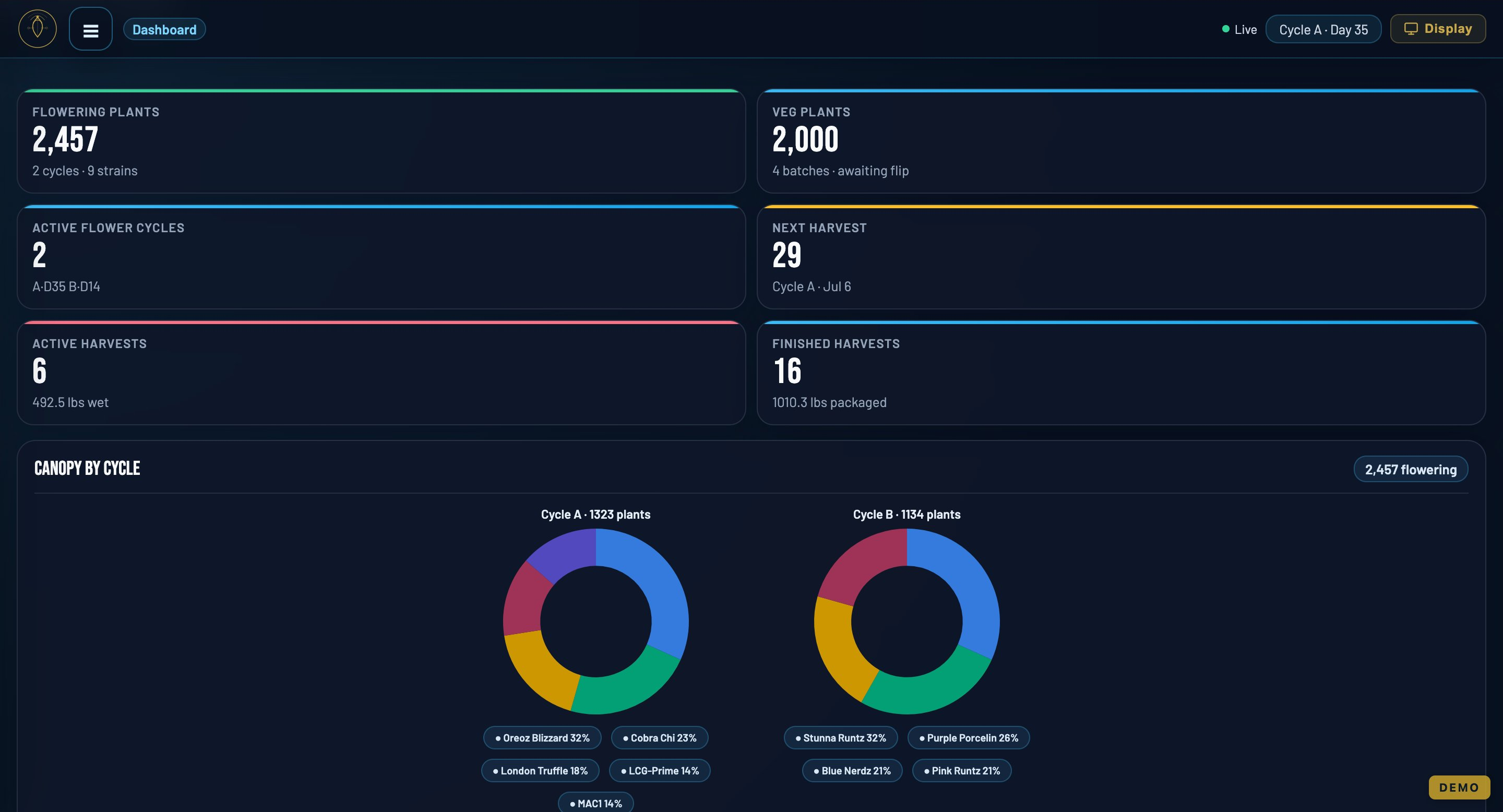
The Cycle Board lays every room out on a shared ~63-day arc, color-coded by task type, with a progress marker at today and a click-to-expand week grid:
Environment
Live readings from every configured room — per-zone cards for temperature, humidity (RH), VPD, CO₂, and light, plus substrate temperature, moisture, and EC where those sensors exist. Everything is color-coded so you can spot problems fast:
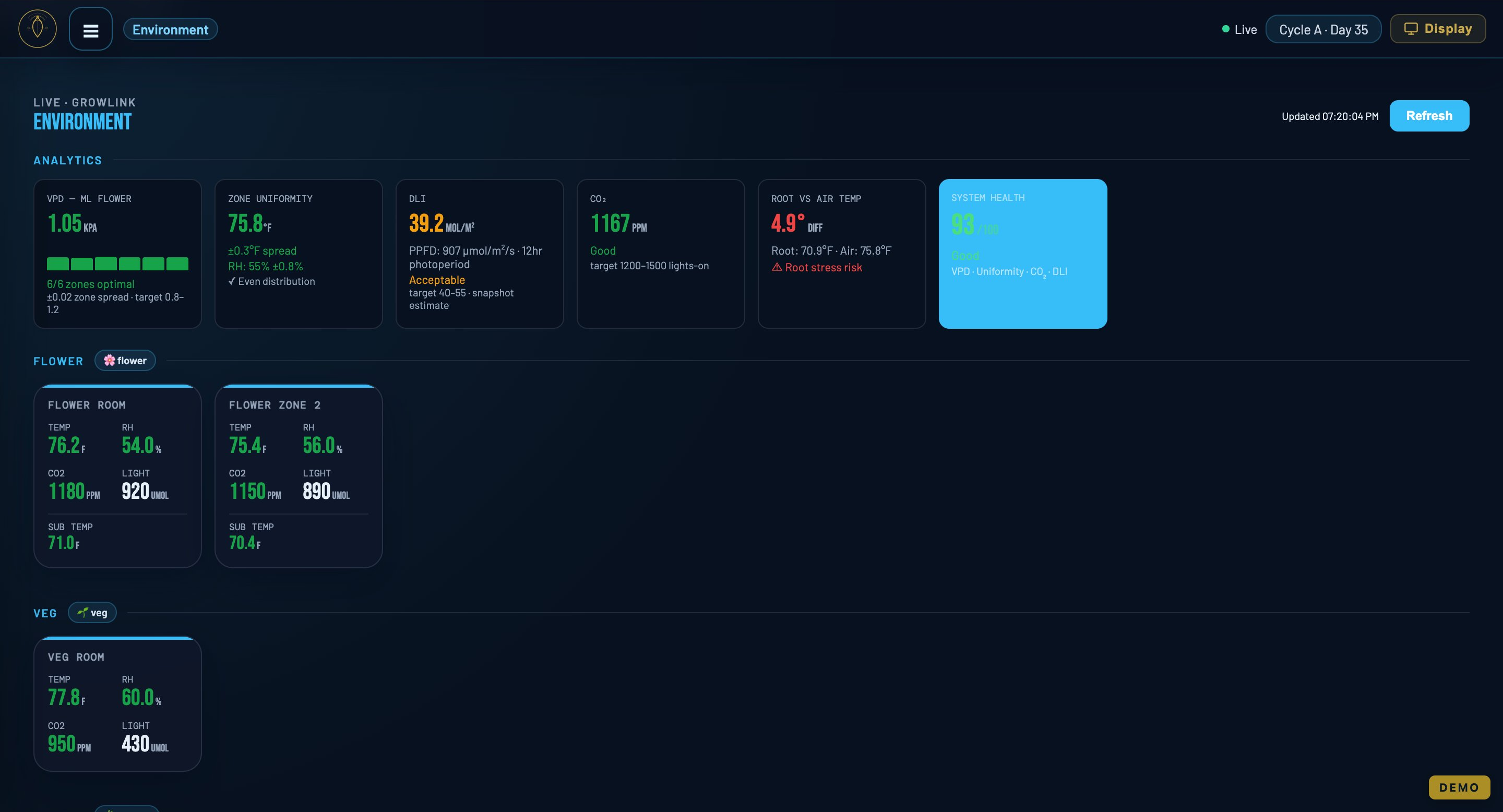
For example, RH over 65% flags botrytis risk and CO₂ under 400 ppm flags low. DLI History charts your daily light integral against a 40–55 mol/m²/day target band, viewable over 30/60 days, all-time, or per flower cycle. A Refresh button and "last synced" timestamp sit on the tab.
CarinaOS is hardware-agnostic — it reads from whatever sensors you already run. Growlink, YoLink, AROYA and TrolMaster data appear side by side in the same environment view, so you see your rooms in one place no matter where your hardware came from. Other systems can be onboarded with us; see Connect your sensors.
Water & irrigation
Everything about your water supply and delivery in one tab:
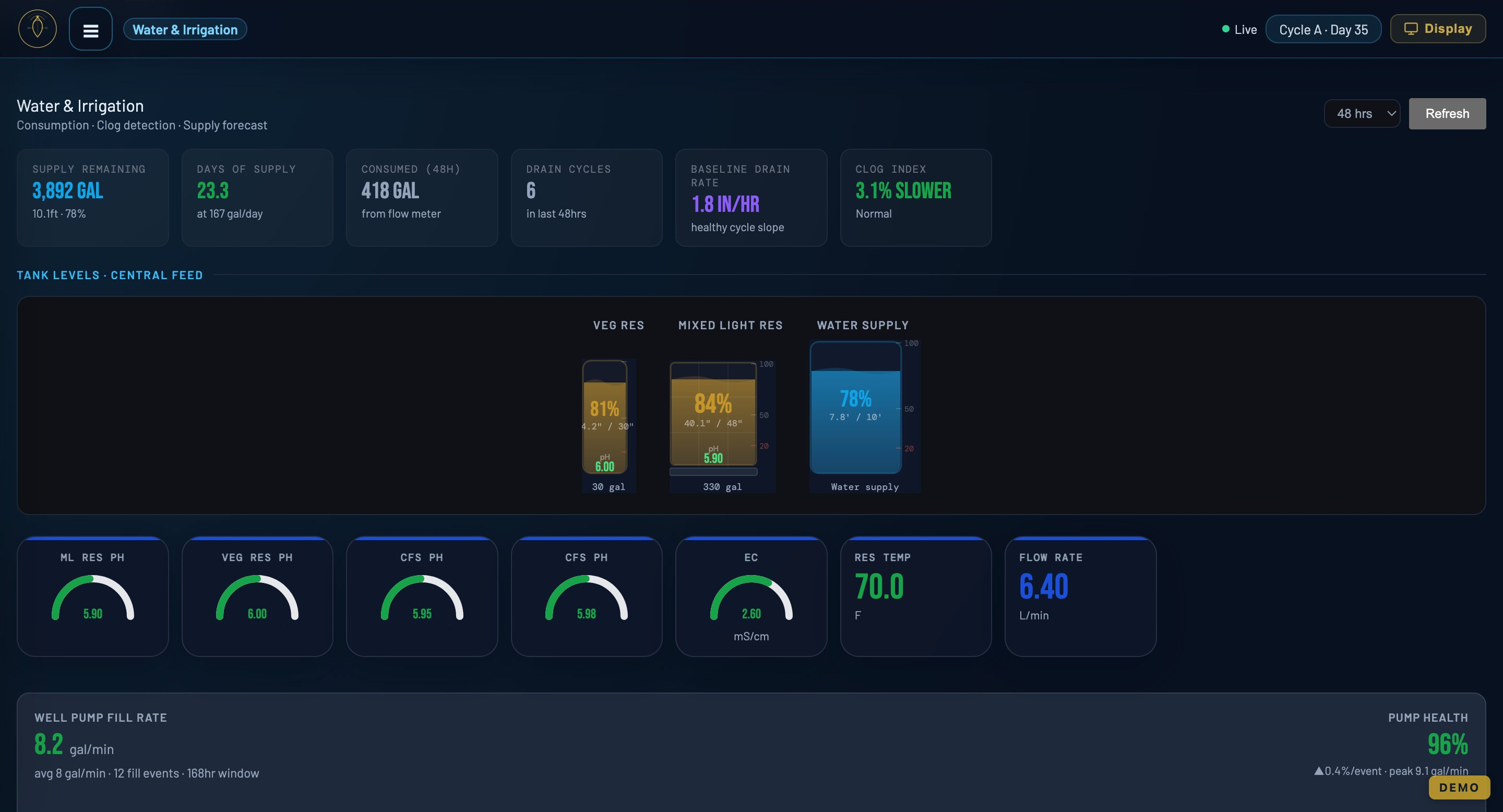
- Tank levels — visual tanks with fill %, depth, trend, and low-level alerts.
- Solution tank pH & EC gauges.
- Well-pump fill rate & health — spot pump wear before it fails.
- Water delivered per shot (flow meter), with a baseline and clog detection that flags emitters running ≥25% below baseline.
- Supply depletion forecast, water-use breakdown (flower vs veg vs other), irrigation uniformity, and EC drift.
If a shot drops well below its expected baseline, the tab flags a likely clog so you can check that zone before it affects your canopy.
Clones, Veg & Flower
Three live-from-Metrc tabs follow plants through the grow.
Clones
Clone counts by strain, clone success rate and trend, and a full clone table. Click a strain to move a clone package forward. Clone waste packages (for example "MMJ Clone Waste") are not clones and are not counted here.
Veg
What it shows depends on your state:
- Every state except California tags each veg plant in Metrc. The Veg tab lists your tagged veg plants by strain; the headline tile reads Tagged veg plants, and clones still sitting in untagged immature batches are counted beside it ("… more in immature batches (not yet tagged)").
- California doesn't tag veg plants, so the Veg tab shows immature batches and an untracked total.
Click a row to act on it: a tagged strain opens Flip to flower, and an immature batch that is not yet tagged opens Tag into veg (California: the batch opens the flower flip). Where your state tracks mother plants as their own growth phase (Colorado, for licenses that turned it on), a Mother plants card lists them; otherwise it stays hidden. The Veg tab also carries Refresh, Destroy and ✂️ Log waste. This view can lag Metrc by a few minutes — refresh before acting.
Flower
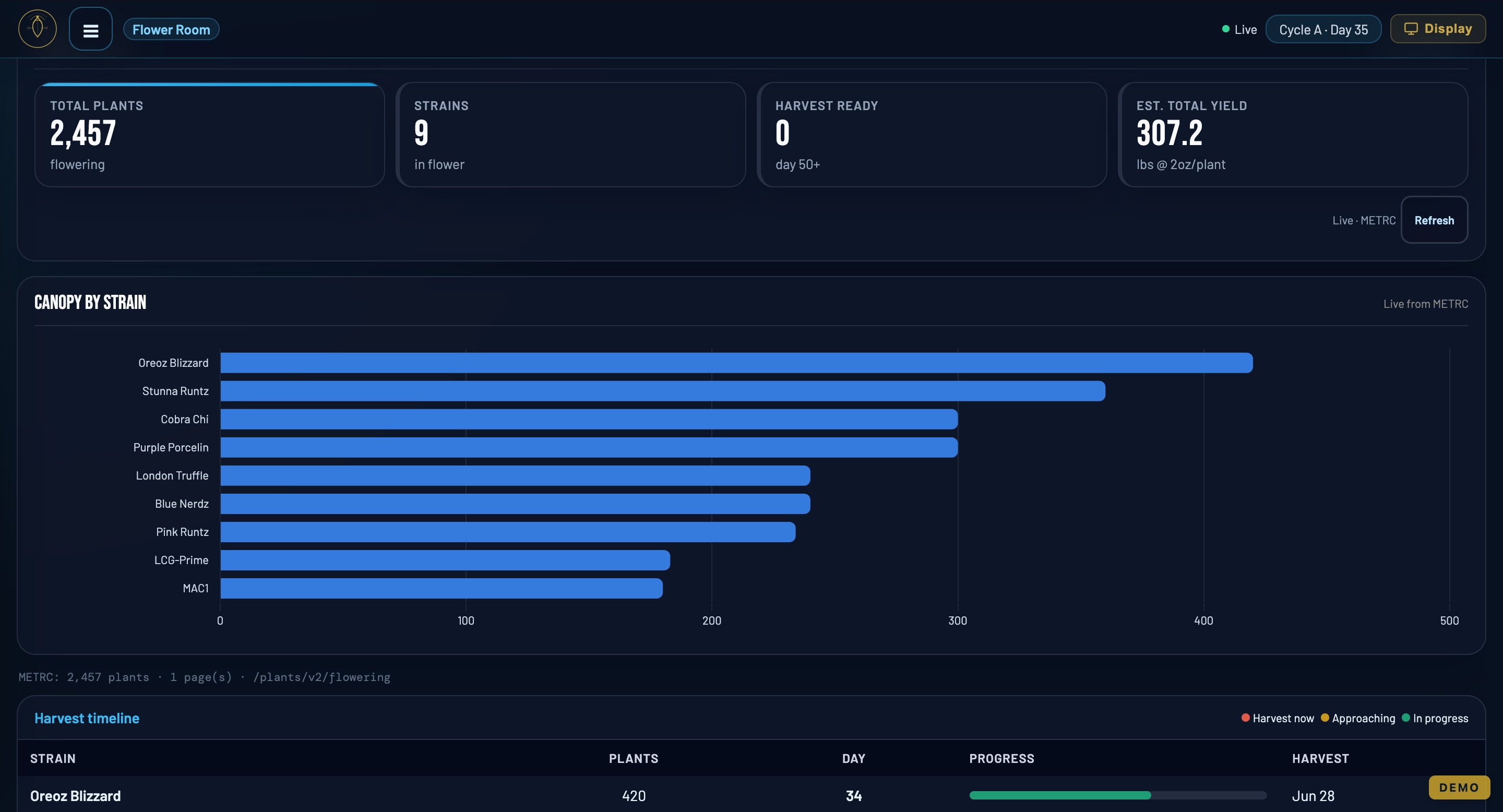
Flowering plant counts, strains, a harvest-ready count (day 50+), and estimated yield. A harvest timeline (red = harvest now, amber = approaching, green = in progress) and a canopy-by-strain chart sit alongside the Harvest Tracker (plants harvested, remaining, current wet weight, packaged weight). Click a strain or row to open the harvest prep workflow. ✂️ Log waste records defoliation or trim waste without destroying plants (see Logging waste).
Moving plants in states that tag veg
Everywhere except California, Metrc tracks each veg plant by its own tag. The path through the hub:
- Clones from a mother. Metrc tab → Create Clone Package. In these states the form reads From a mother plant: pick the tagged mother, and the clones go into a new clone package with its own tag. Metrc decides per license whether clones may be packaged from plants; if yours can't, the form says so, and the package has to be created in Metrc directly (or ask Metrc about your license).
- Clone package → Veg. Metrc tab → Clone Package → Veg plants the clones in your veg room as an immature batch.
- Tag into veg. On the Veg tab, click the batch (it's marked not yet tagged). The form reads Tag <strain> into veg: choose the veg room, enter the starting tag (the last 4–6 digits find it), and each plant gets its own tag, counting up. To move only part of a batch, enter a Count. A count applies to one batch, so with several batches ticked it is refused; untick all but one, or clear the count to move every ticked batch in full.
- Flip to flower. On the Veg tab, click a tagged strain. Flip to flower takes every plant of the strain, only the plants in one veg room, or a range of tags (type the last digits; leave To blank for one plant). Choose the flower room and flip date. Each plant keeps the tag it already has — no new tags are used.
A flip can't be undone in Metrc. Dry Run first, every time.
Metrc — compliance action center
This is where you run compliance actions. Every action has a 🧪 Dry Run that validates the request without touching Metrc, and a banner reminds you to Refresh first, because Metrc data is cached ~10 minutes.
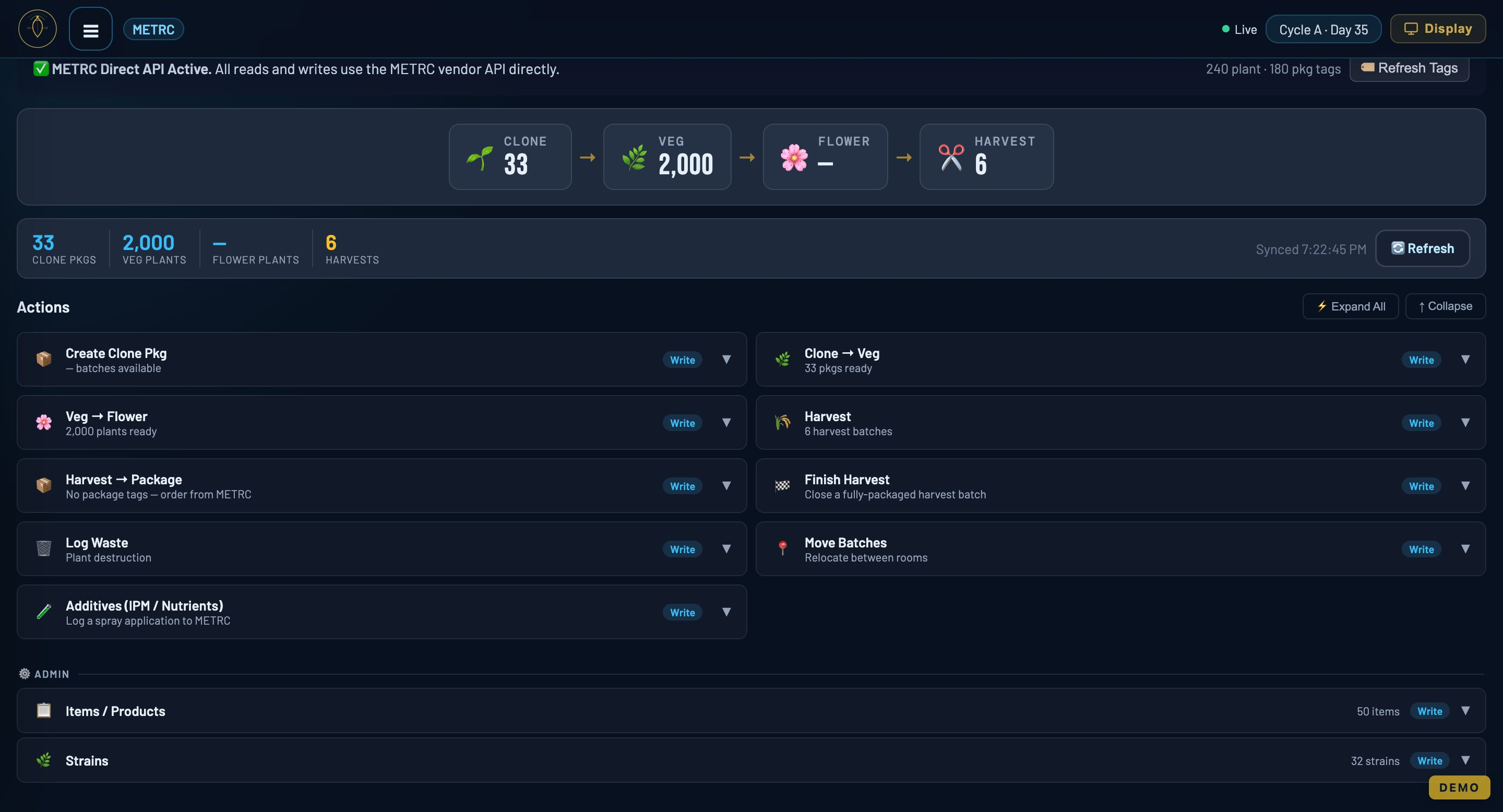
Available actions:
- Create clone package — package clones into a new tagged package: from an immature batch (California) or from a tagged mother plant (every other state).
- Clone → Veg — move clone packages into veg as new plantings (an immature batch).
- Veg → Flower — flip veg plants to flowering. A batch flip gives each plant its own tag, counting up from a starting tag; tagged veg plants keep the tags they have. Large flips are split automatically into Metrc-sized chunks.
- Harvest → Package — move dried weight from a harvest into a new tagged package.
- Finish / Unfinish Package — close out an empty package, or reopen it.
- Adjust Package — change a package quantity with a reason and note.
- Destroy plants — destroy flower or veg plants by strain or by tag range, or untracked immature veg by batch weight, with reason and method. Permanent.
- Log waste (plants stay) — defoliation, trim and clippings, recorded as waste without destroying any plant. See Logging waste.
- Move Batches / Move Plants — relocate plants or batches between rooms.
- Log Additive — record a nutrient or IPM application to plants or a whole room.
- Tag Inventory — see available plant and package tags with a burn-down trend and low-tag warnings.
A Veg → Flower flip and waste / destruction can't be undone in Metrc — always Dry Run those first. Finish Package / Harvest can be reversed with Unfinish.
Logging waste — defoliation and trim
Defoliation, trim and clippings are waste, not destruction: the plants stay. Open ✂️ Log waste on the Veg or Flower tab, or Log flower waste / Log veg waste in the Metrc tab's Destroy Plants card.
- Waste came from — a whole room (e.g. a defoliation pass), or plants of one strain, optionally narrowed to a range of tags.
- Enter the waste weight and unit, the method and reason (both from your state's Metrc lists), and optionally what it was mixed with and a note.
- 🧪 Dry Run, then ✂️ Log waste — plants stay. It is recorded in Metrc; nothing is destroyed.
The form also shows Recent waste in Metrc, newest first, each record marked packaged or not packaged yet.
Metrc's API does not let any outside software package plant waste, so CarinaOS records the waste and marks what still needs packaging, and the packaging itself happens in Metrc.
Harvests & packaging
Handle a harvest end to end from the Flower tab or the Harvest action:
- Prepare the harvest — open the harvest prep for a strain/row on the Flower tab (or 🌾 Harvest cycle on the Cycle Board for a whole cycle), record your wet weight, and file it to Metrc. This is a live compliance write: Refresh → Dry Run → act (a Dry Run checkbox validates it first).
- Once dried, use Harvest → Package to move weight into tagged packages.
- Finish Harvest when everything is packaged.
A package can't exceed the available weight in its harvest, so the weight is required to create it. Leave it blank and the action won't submit.
Plant weights
Metrc records a wet weight for every plant. The Plant weights choice on the harvest form decides where those come from:
- Split the total — vary ±8% per plant (the default) — enter the total; each plant gets its share, varied by up to 8% either way so the record doesn't show hundreds of identical weights. The plants always add up to exactly the total you entered.
- Split the total evenly — every plant gets the same share.
- Weigh each plant — opens a weigh sheet instead of asking for a total.
On Harvest cycle, each strain in the cycle has its own total; untick strains to harvest the cycle in waves.
The weigh sheet
For a wet weight per plant, taken on the scale:
- Find the plant — type the last 4 or more digits of its tag, or scan it, then type the weight. With the box empty, Enter goes to the next plant still to weigh.
- 📱 Scan on a phone — shows a QR code. Open it on a phone signed in to CarinaOS, scan tags with the phone's camera, and type weights on either screen; both stay in step. (Laptop webcams generally can't read Metrc barcodes; a phone can. In the CarinaOS app, the phone's own scanner is built in.)
- 📋 Paste or CSV — paste tag/weight pairs, or download the CSV template, fill it in and upload it.
- A weight far from the others is flagged ⚠ check, in case of a typo.
- Weights are saved as you go. Close the sheet and come back: starting a weigh sheet for the same harvest picks up the one already open.
When you're ready, 🧪 Dry run, then 🌾 File N weighed plants to Metrc. Each plant is filed with its own weight. You don't have to wait for the whole room: file the plants weighed so far, weigh the rest, and file again. If some plants were never harvested (destroyed, or harvested elsewhere), Close sheet finishes it as the record. Before anything is filed you can Discard sheet instead.
Metrc has no un-harvest. When every plant is filed, the sheet becomes the record — 🔒 Filed to Metrc on … — of what each plant weighed.
Cycle Planner
Pick a room and flip date, then tap Generate Schedule to produce a full cultivation, IPM, and harvest calendar. The Active Cycles table shows every cycle's plant count, flip date, projected harvest, current day, and stage.
Tasks & playbooks
- Board — tasks per cycle, filtered by today / overdue / completed, assignable to staff.
- Staff — manage your team roster.
- Templates — load a sample playbook (e.g. an IPM calendar), edit it, save your own, and materialize it onto a room using the flip date as day 0.
- Rooms & Tables — subdivide rooms into tables (T1…Tn).
Analytics
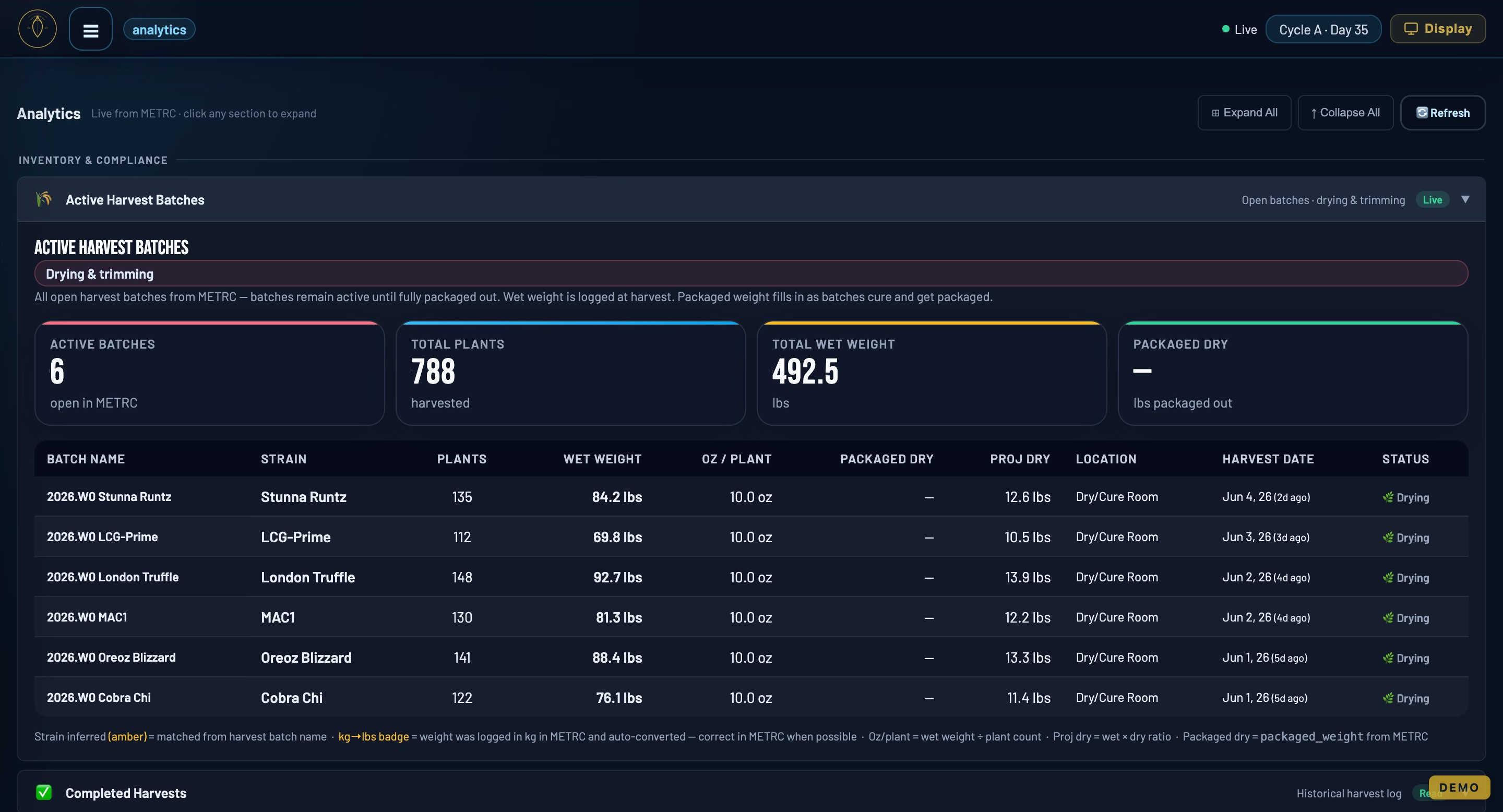
The reporting view across your operation: active and completed harvest batches (weights, oz/plant, projected dry), cannabis inventory by strain and category, and transfers out (manifest, recipient, weights) with date filters. It also covers pipeline overview, batch shrinkage, flower-phase distribution, a projected harvest calendar, and strain performance.
Digital log sheets
Six cloud-backed log sheets, visible across every device signed into your facility:
- Daily Log — shift, room, environment, feed EC/pH, irrigations, observations.
- IPM Log — product, rate, spray window, result.
- Metrc Log — a record of compliance changes.
- Harvest, Dry & Cure Log — pre-harvest checklist and wet / dry / cure weights.
- Sanitation / Turnover Log — room turnover phases.
- Clone / Propagation Log — mother health and rooting progress.
Everything saves to the cloud, so any device on your facility sees the same records.
DCC checklist & audit
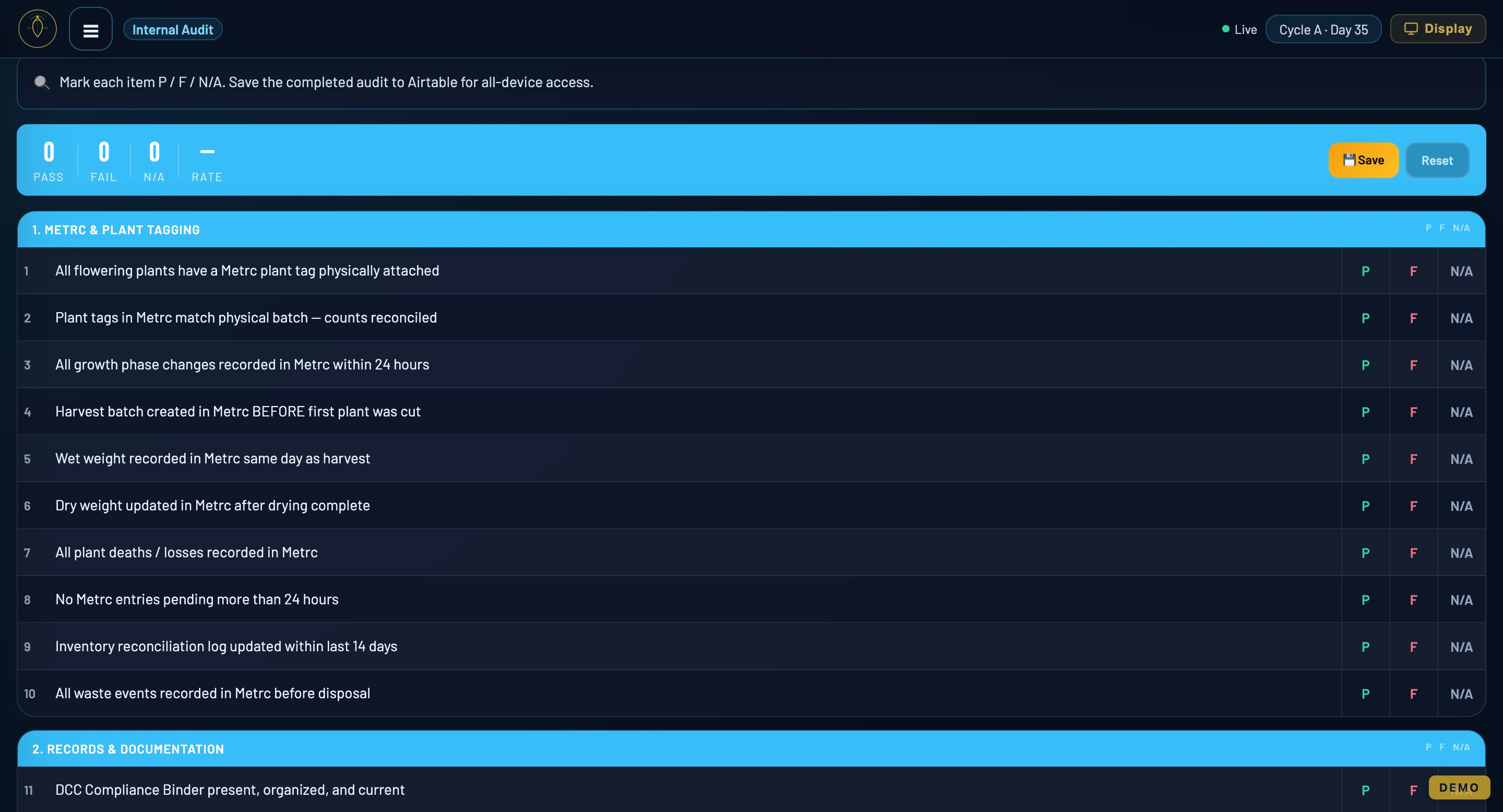
Get inspection-ready without scrambling. Work through the DCC Checklist — tap items to check them off, watch the progress bar — then save an inspection record with the inspector, type, findings, and outcome. The Internal Audit tracks pass / fail / N-A items with a score, and findings save to the cloud.
TV Wallboard
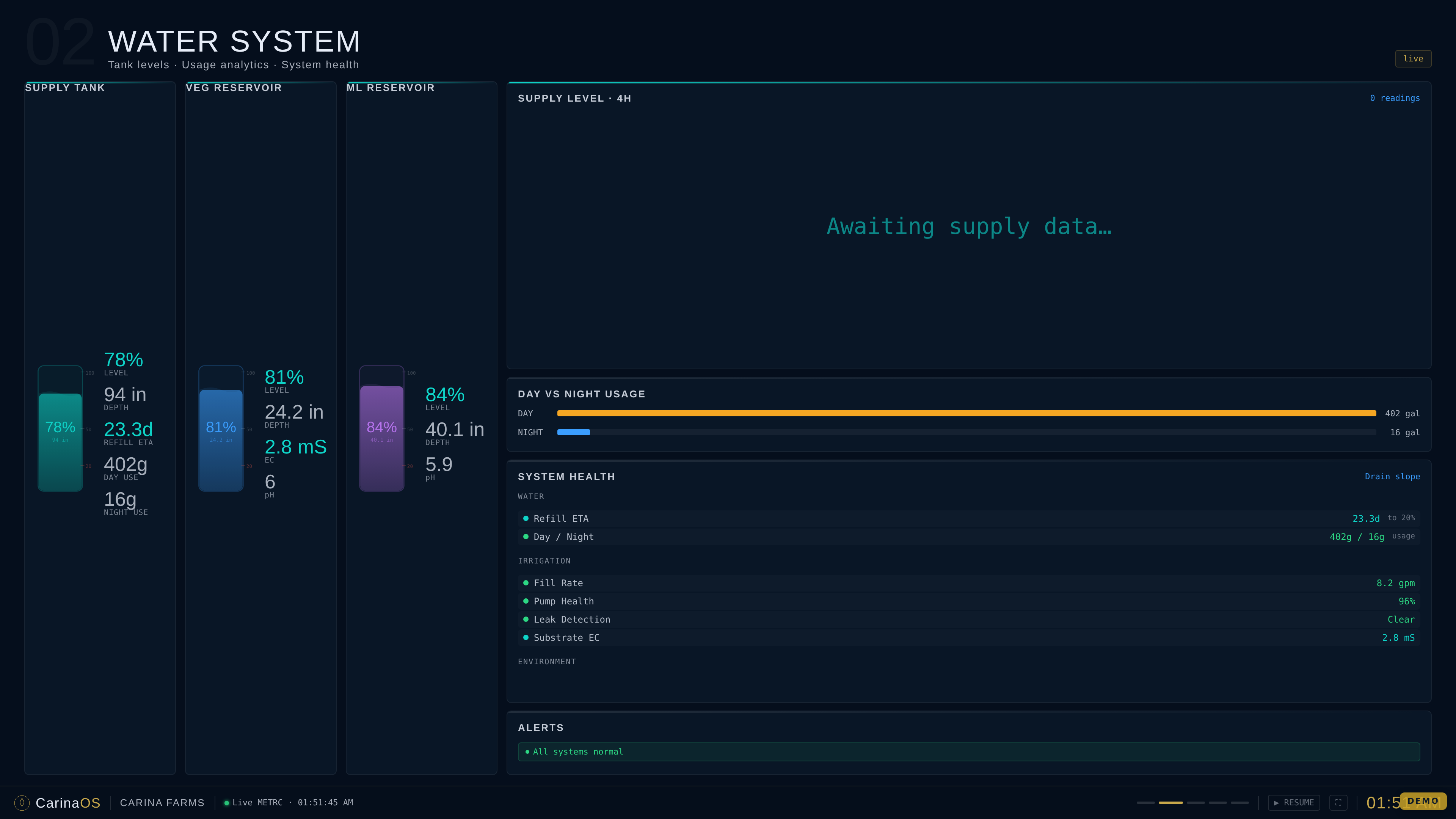
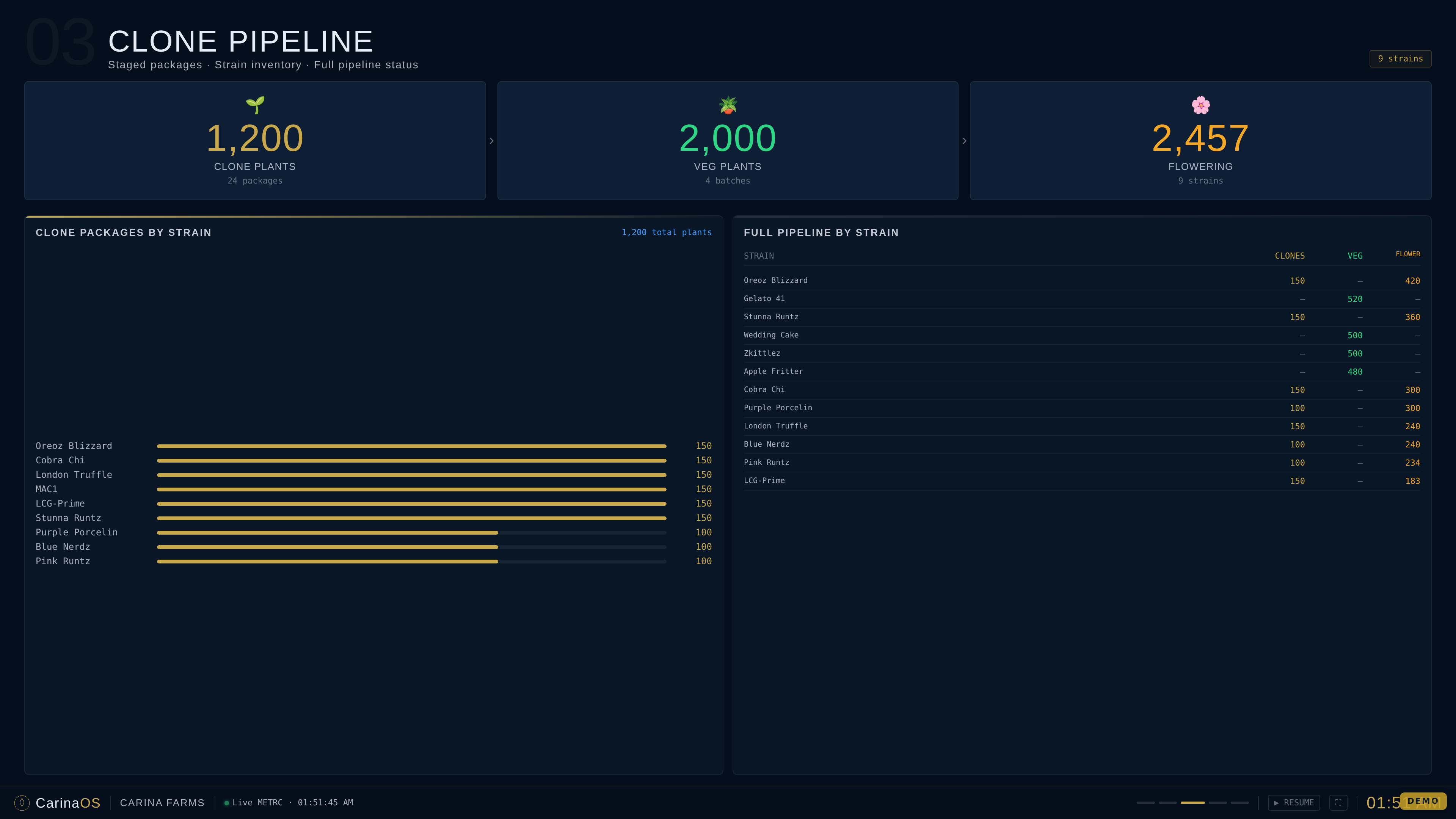
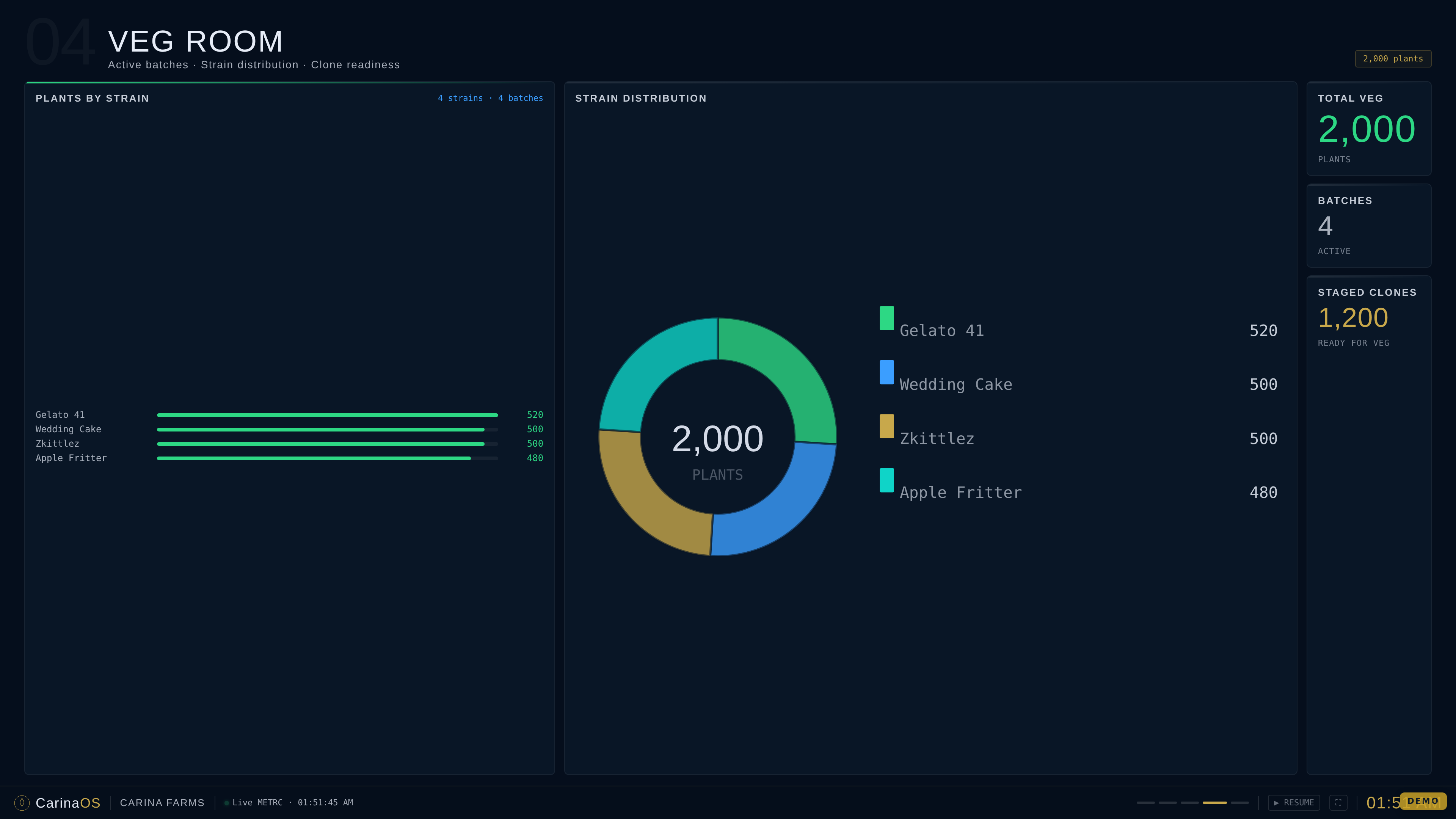
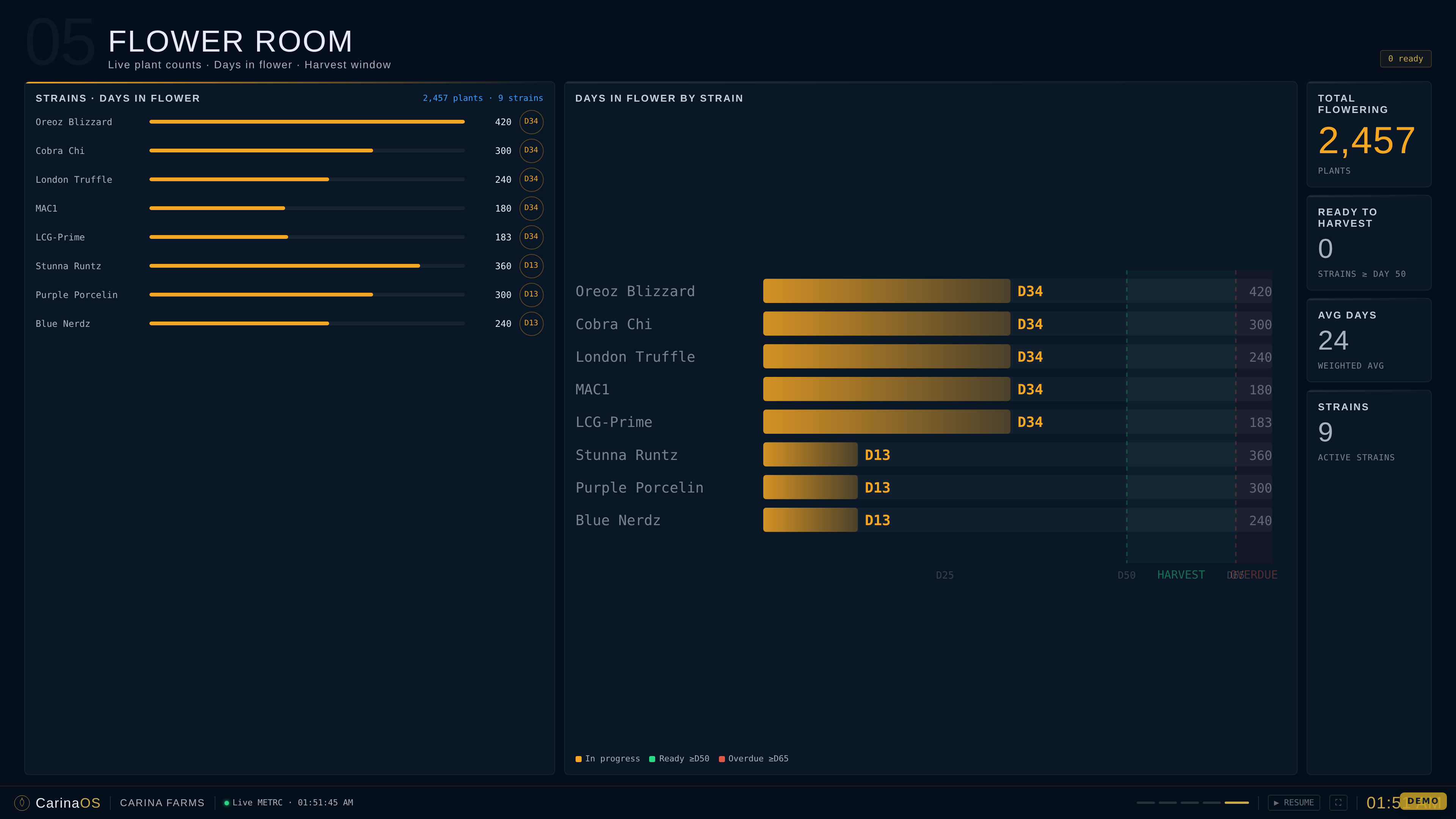
A full-screen operations display built for a TV or monitor on your grow-room wall. It auto-rotates through six live pages so the whole crew can see the state of the facility at a glance — no login, no clicking.
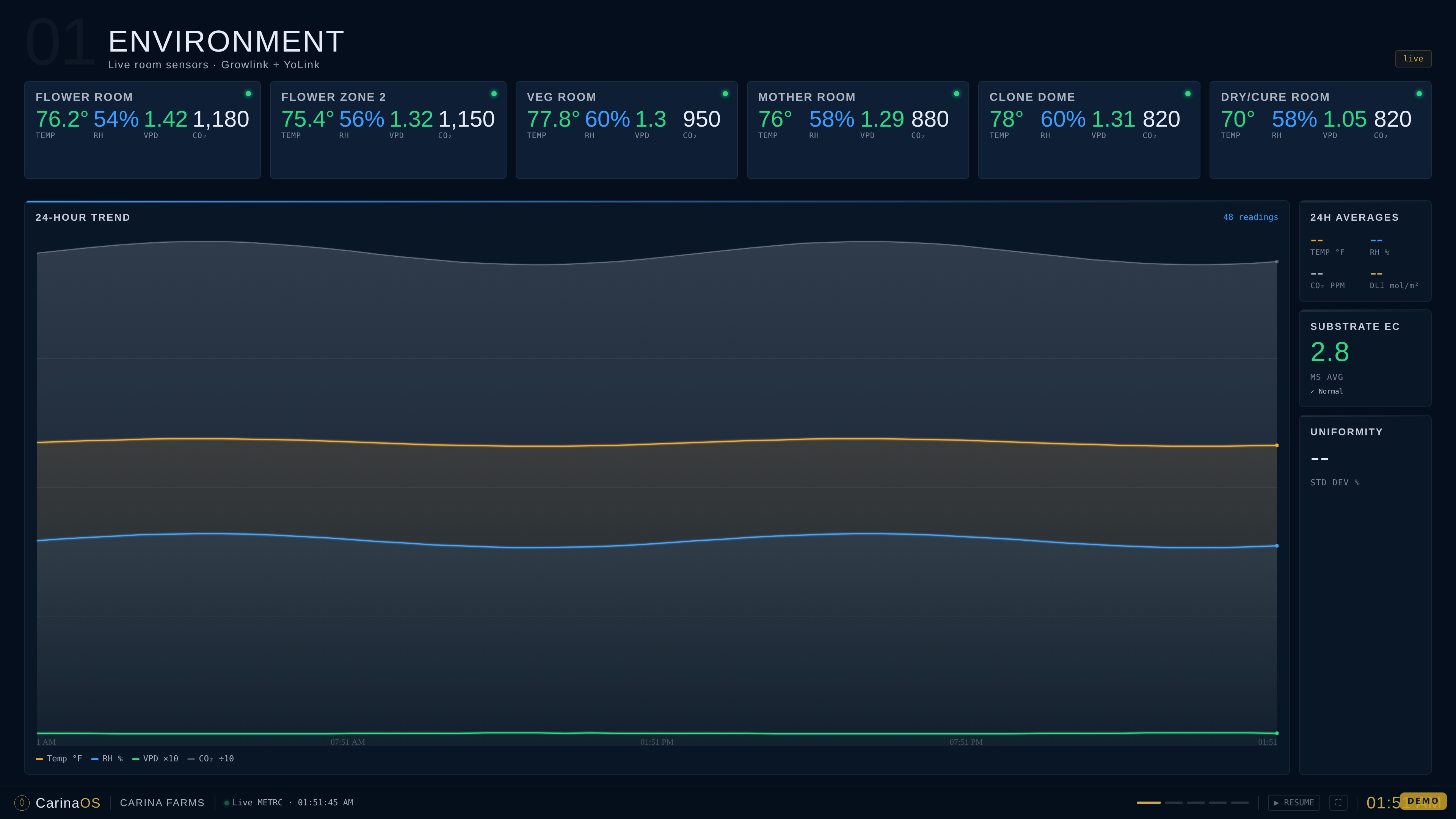
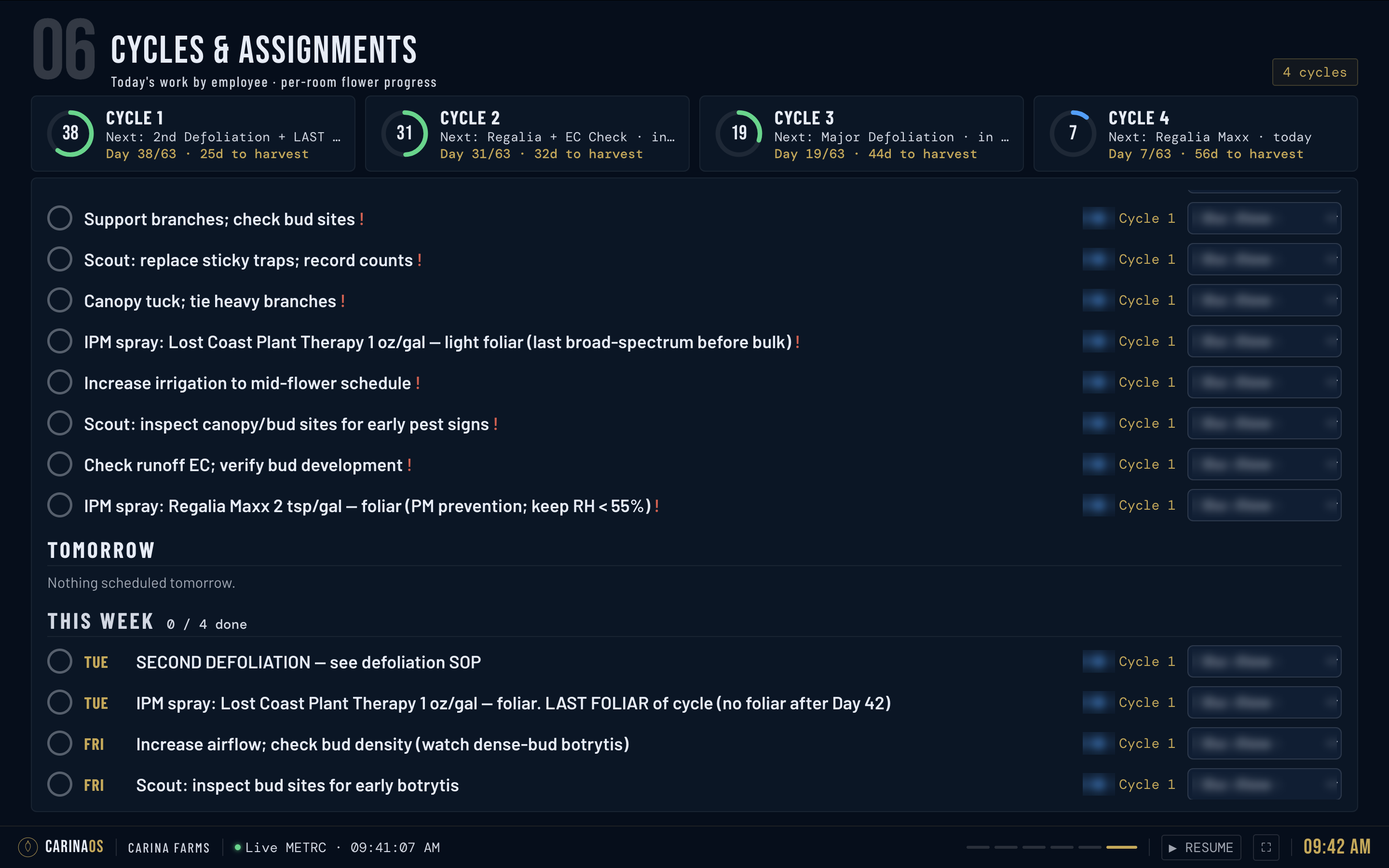
The six pages
Cycles & Assignments
This page turns the wall screen into the crew's daily worklist. Along the top, a card per active cycle shows its day in flower (e.g. Day 38/63), days to harvest, and the next scheduled task. Below that, today's tasks are listed with the assigned staff member beside each one, followed by Tomorrow and a This week roll-up with a done count.
Because tasks and staff come from your Tasks & playbooks setup and cycles come from the Cycle Planner, the board stays current on its own — assign work at the desk and it appears on the wall.
Running it
- Open the wallboard on any browser-connected screen and put it in fullscreen.
- Pages rotate automatically; page dots show where you are in the loop.
- Use pause / resume to hold on a page — handy during a crew huddle.
- The footer shows your facility, a live Metrc indicator, and the current time.
A cheap TV or tablet in the corridor is enough. Since the wallboard is read-only, it's safe to leave running where staff and visitors can see it.
Settings & alerts
Settings
- Facility — name, license number, state.
- Cycle configuration — flower cycle length, cycles/year, baseline oz/plant, default flip date, cycle stage events.
- Room / location names — map Metrc locations to your dashboard names.
- Integrations — Metrc, Growlink, YoLink and TrolMaster credentials, plus Have other hardware?
- Sensor configuration — discover, assign, and manage your sensors (Settings → Sensor Setup).
- Metrc environment — Production vs Sandbox and webhook registration (owner-level).
- Account — delete facility (owner only).
Alerts
The hub surfaces conditions inline where they matter: harvest aging (a harvest sitting unpackaged too long), low tags, environmental (out-of-range temp / RH / CO₂ / VPD or substrate too wet/dry), and water (tank low, pump degradation, clogged emitter).
If every sensor feed for a facility stops reporting (for example after a Growlink password change), the facility stops looking fresh and the no sensor data alert fires after about an hour, rather than the hub quietly showing empty readings.
Starting with the ERP
The ERP is an add-on. It holds the money side of the facility — what you bought, what you used, what a crop cost, what you sold it for — next to the plants that record is about. It runs in the web Hub. The iPhone and Android apps do not show it, on purpose: its tables and charts are laid out for a desk, and your access is the same whichever screen you sign in on.
A sensible order for your first week
- If your books already live in QuickBooks, connect it first and bring the history in (see Bringing in what QuickBooks already has). A year of bills arrives in a few presses instead of a quarter of typing.
- Set when your books begin on Grow costs. Every rate is measured from that date.
- Upload the bills you have not got yet under Documents, review each one and post it.
- Work down the readiness panel on the Overview, in the order it gives you.
- Only then read a cost per pound as a finished figure. It exists from day one, and it gets more exact as each step lands.
The Overview
The first tab is the five-second read. Sales and Net sit side by side, because what came in cannot tell a good month from an expensive one on its own — the difference does. Below them, Needs attention lists only what the system cannot finish without a person. When nothing needs doing, it says so plainly rather than showing an empty heading.
“Before you trust a cost per pound”
On a new facility, the Overview opens with a readiness panel. It is six checks, in the order they build on each other. Take them top to bottom, because doing a later one first still leaves the figure wrong:
- When your books begin — one click, and everything below is measured from it.
- Purchases that became stock — spend has to become stock before anything can consume it.
- Nutrients and supplies reaching a crop — stock consumed against a crop.
- Rent, power and the rest reaching a crop — the accounts a rule or a tick sends to a crop.
- Approved hours reaching a crop — hours tagged to a cycle or a batch.
- Packaged weight to divide by — a Metrc fact rather than a setting, so it comes last.
Only the first open check is shown, with a button that lands on the control that fixes it. The rest are one click away, and the panel disappears once nothing is open. A check with no data yet — no bills, say — reads as empty, not failing.
Finding anything
The search bar above the tabs is always there. Type a vendor, a SKU, a product, or a bill or invoice number and press Enter. It searches vendors, catalog items, bills and their lines, documents, purchase orders, invoices, customers, accounts, Metrc packages and harvests at once, and each result opens the record, not just the tab. ⌘K (Ctrl-K on Windows) jumps to any tab by name.
Tabs with nothing in them yet are dimmed, not hidden. Every tab still opens; the dimming only tells you which few are in use today. Setup, QuickBooks, Overview, Operating costs, Grow costs and Reports are never dimmed.
Working with the tables
- Date chips — any table with a date and more than a handful of rows has All · 30d · 60d · 90d · Range beside its search box. The bar names the column it filters by, and a row with no date is never hidden by a date filter.
- Totals — number columns total at the foot of the table. When a filter is on, the total says matching rows only. A row that should not count, such as a void bill, is left out and the footer says so beside the figure.
- Total just a few rows — ⌘-click (Ctrl-click) rows to select them, or Shift-click for a run, and the footer totals only those. A plain click opens the record as usual.
Buying & receiving
Part of the ERP add-on. Three steps, and the middle one is the one that matters: order → receive → bill. Receiving is what puts stock on the shelf and gives it a cost. An order on its own changes nothing, and a bill on its own only records what you owe.
Raising an order
ERP → Purchases & bills → New purchase order. Pick a supplier and everything you buy from them appears, already priced from what you last paid, with how much is on hand and how many days that lasts at your own rate. Anything out or low is ticked for you.
You type packs, not units. Put 1 against a 25 lb bag and you have ordered one bag. The system converts to pounds when it saves, because that is what the shelf counts — you never do that arithmetic. The line shows what your number resolves to underneath it.
The pack and the price are editable on the line. If the catalog does not know that Milstop comes in a 5 lb tub, type 5 in Pack and carry on; you do not have to go and set the item up first. A size you type is remembered on the item afterwards — but only where the item had none, so a genuine one-off does not rewrite your catalogue.
Something bought in two sizes — a 1 gallon jug and a 2.5 gallon one — gets a picker. Choosing a size fills its price. Add sizes on the item, or just type one and it is kept.
Buying something they have not sold you before? Under the order’s totals, Add a line by hand opens the whole catalog with no supplier filter, plus a free text line for something that is not a catalog item at all. The supplier carries across.
Who sells you an item is set in one place: the Vendor picker on the Reorder forecast, or on the item itself. Where nobody has pinned one, CarinaOS uses whoever sold it to you last and marks it not pinned.
Sending it to the supplier
Open the order and press Print / save as PDF. It prints as a one-page order grouped the way you walk a shelf, quantities in the supplier’s own packs, your licence in the header and a line to sign. A draft is marked as one, so nobody fulfils against a copy you have not approved.
Receiving
Open the order and press Receive. Quantities default to what is still outstanding. This is the step that creates stock, at the cost on the order — correct the cost here if the delivery came in at a different price.
An order you should not have raised
Open it and press Cancel order. It stays on file — nothing is deleted — and stops appearing in open orders and in the list offered when you match a supplier invoice. Say why if you want to; the reason is kept on the order. Reopen puts it back as a draft, because cancelled by mistake is as likely as raised by mistake.
An order with anything already received cannot be cancelled. Those goods are on a shelf at a cost, and the ledger entries for them point at this order’s lines — cancelling would leave stock whose origin says “cancelled order”. Receive the rest, or leave it open.
Supplier bills: upload, check, post
Most bills arrive as paper or a PDF. Upload them under ERP → Documents. Each file is read — the supplier, bill number, dates, every line, tax and freight — and then waits under Still to deal with. Nothing is recorded until you post it.
- Press Review on the document.
- Check what was read against the paper: the supplier, each line’s quantity, unit and price, and the account in Costs against.
- Check Covers on anything that pays for a period (see below).
- If the bill is already paid, tick Already paid — record the payment with the bill so it does not sit in what you owe.
- Press Post as a bill. Stock lines bring the goods onto the shelf, and the amount joins the bills you owe.
A document uploaded by mistake — a duplicate, the wrong file — can be Discarded. It asks first, and the file is kept on record rather than deleted. A posted document cannot be discarded, because it is the evidence behind a bill.
The period a charge covers
Rent, power, water and insurance pay for a period, not a day. Covers on the line says which. Most bills cover one calendar month, so it opens as a month picker. A utility that runs mid-month to mid-month keeps its two dates: the reader takes the printed service period, and never guesses one from the bill date. A line under the control always shows the exact days that will post.
It matters because a charge is shared across cycles by day. Flip a room on 12 September and that month’s rent divides between two crops. A power bill with no period lands whole on whichever cycle holds the bill date, and one crop looks expensive while the next looks cheap.
A two-date period cannot be switched back to a single month. The picker refuses rather than round, because rounding 14 Aug – 13 Sep into September moves money between two crops.
Tax and freight
Tax and freight are part of what a bill cost, and each reaches QuickBooks as its own line. Map where they land on the QuickBooks tab: Purchase tax and Freight in. Whether freight is added to the cost of your stock or expensed as it happens is your CPA’s call — under 280E it changes what counts as cost of goods sold — so both kinds of account are offered. Until they are mapped, a bill carrying tax or freight waits rather than guessing.
Matching the supplier’s invoice
Upload the invoice under ERP → Documents as usual. On the review screen, pick the purchase order it belongs to. Two things then happen:
- It does not receive the stock again. Receiving already did that. Without naming the order, posting the invoice would put the goods in twice — your on-hand doubles and your cost per gram halves.
- It checks the invoice against the order. Ordered, received and invoiced side by side, per item, flagging anything billed for more than arrived, priced above the order, or on the invoice but not on the order.
Quantities are compared in the same units on both sides, so a supplier billing 10 bags against an order for 250 lb reads as agreement, not a shortfall.
The invoice wins. Where the two disagree the bill records what the invoice says — it is what you owe. The order is a check, not an override, and the difference is shown in dollars so you have something to take up with the supplier.
One consequence worth knowing: receiving valued the stock at the order price, because that is the only price known when goods arrive. If the invoice charges more, your inventory is carrying the older figure and the screen tells you what that difference is worth. Whether it is written off or revalued into stock is your accountant’s call.
A bill keyed in the wrong unit
A receipt reading “Cal+Mic — 1 — 25 LB — $66.49” is one bag, not one pound. Keyed as a pound, the line claims a pound costs sixty-six dollars, and anything reading it back for a price repeats that.
The bill flags it — “$66.49 looks like a bag price” — and Recode fixes it. Correcting the unit moves no money: the total, the payment and the stock are untouched. It is the same route you use to change which account a line costs against, and it works on a paid bill for the same reason.
Stock, packs & counts
How something is bought vs how it is held
An item has a stocking unit — what the shelf counts, and what a recipe doses in — and optionally a pack, which is how the supplier sells it. FloraPro is held in pounds and bought in 25 lb bags. Grodan plugs are held individually and bought in boxes of 1,500.
Set them on the item, or on an order line the first time you buy it. Everything downstream follows: an order asks for packs, a bill converts to units, and a cost per gram divides by units.
Counting
ERP → Inventory → Record movement → Physical count. Type the number you actually counted — not the difference. CarinaOS works out the variance and records that, so the ledger stays append-only and you can always see why on-hand changed.
Counting zero is a count. An empty shelf is the commonest thing to record, and it is accepted.
When to reorder
The Reorder forecast on the Inventory tab shows what runs out next. Where you record issues it measures them. Where you do not — which is most facilities, most of the time — it reads your delivery history instead: you reorder when you are running low, so everything received between your first and latest delivery has been used by the time the latest lands.
Each row says which of the two it used, and how thin the history behind it is. Two deliveries is a rough rate; four is a good one. It predicts — it never posts, and it is not a stock count.
It also flags items where more has left the shelf than the ledger records going out. That is worth a count, and it is why a cost per gram can read low.
Purchases that never became stock
A bill line that buys nutrients or media but names no catalog item never enters inventory, so it is never consumed and never reaches a crop. The money is on your books and missing from every cost per pound. Purchases & bills lists these lines, largest first, under Purchases that never became stock. The readiness panel’s Link them button lands there.
Create item reads the item off the line — name, unit, pack size, account — and shows what it worked out, with anything it guessed marked. Check the pack size in particular: it multiplies what goes on the shelf and divides what each unit cost. On confirming, it creates the item and links the line in one step. Do it once per product; later bills pick it from the list.
Rent, power and other operating costs never appear here. They reach a crop by being shared out, not by becoming stock — see Operating costs into crops.
What a crop costs
Part of the ERP add-on. ERP → Grow costs. Three streams reach a crop, and they arrive by different routes:
- Things it consumed — nutrients from the feed chart, media per plant. Bought into stock, then issued to the cohort.
- Labor — approved hours tagged to a cycle, a batch or an area.
- A share of overhead — rent, power, water. Never consumed; divided, which is the next section.
The first figure: what a pound cost you
The page opens on one division: everything you spent over everything you packaged. That means every bill line and every approved hour in the window, over every pound packaged in it. It needs nothing set up first, so a facility with real bills and real harvests gets a number on day one. How this works opens a diagram of it.
Everything else on the page — by batch, by strain, what reaches which crop — refines that figure; it never replaces it. Two limits come with it, and the card states them:
- It is a spend basis. A window that buys a season of nutrients and packages one harvest reads high. Under 63 days the card says the window is shorter than a flower cycle, and the figures settle as the window widens.
- A window that packaged nothing has no rate — not zero. The card says why it is empty.
Underneath sits Of that, inventoriable under 280E: the part of the cost per pound on the accounts you have marked inventoriable, with labor following the labor account’s own marking. If nothing has been marked, it says the question is unanswered rather than showing $0.00. It reports your marking back to you; it does not take a tax position.
What if you took something out? Untick a line under the figure and the rate recomputes without it — the cost without power, say. It is a scratchpad: nothing is saved, and it resets when the page reloads. The Reaches the crop? ticks on Operating costs are the real, saved decisions.
When your books begin
Every rate on this page is measured from a start date. CarinaOS suggests one: the first date where your records become continuous, skipping an isolated old bill with nothing after it for months. It says what it skipped. Stock you already held on that date is an opening balance, not something you used in the period.
Once set, a line near the top reads Your books begin …, with Change beside it. Use the derived date goes back to the suggestion. Harvests before the date stay on the page, marked, and out of the rates.
A harvest Metrc does not have
Packaged weight normally comes from Metrc. If you are not on Metrc, or Metrc has a harvest wrong, press Record a harvest (or Record a harvest by hand) under the figure. Enter the weights in whatever unit the scale reads. A harvest recorded by hand is counted, and the card says how many pounds came from hand-recorded harvests, so a reader can tell which evidence they have.
Media — pots, plugs and blocks
A feed chart doses per gallon of water, continuously. A pot is used once, per plant, so it cannot ride the chart. Set it on ERP → Inventory → Media cost per plant: how much one plant uses, and what one costs.
That is enough. The cost reaches every cycle from its own head count straight away — you do not have to wait for the stock to be received, because plants go into pots before anyone reconciles an invoice. Where you later issue the real stock, the posted figure replaces the estimate, item by item.
Feed
The chart’s own arithmetic — gallons times the recipe — is what the column shows until anything is posted. Post the modelled usage as real inventory issues from ERP → Grow costs and the posted figure takes over. The row always says which of the two you are looking at: an estimate and a measurement should never look like the same kind of number.
Labor: where to tag an hour
An hour reaches a crop through what it is tagged to when it is approved. The picker offers:
- A cycle or a batch — somebody spent the morning in one room.
- Flower room plant care — split by plant count — work that serves every crop in flower, such as mixing a reservoir that feeds four rooms. It is split across the cycles standing that day, in proportion to their plants.
- Veg room plant care — split by plant count — the same for veg: a transplant day, a veg-room spray.
- Propagation — clones stuck this day — cloning. Those clones do not become a crop for months, so the share arrives when they flower. It is matched through the batch tagged on the day they were stuck. Clones that die leave their share with the crop the survivors became.
- Veg room / Flower room — not on a crop yet — the hour is recorded against the area and reaches no crop. Use it only when the work really belongs to no crop.
Labor on a cycle still in flower is on a crop. It shows against the cycle now and moves to the batches when they are harvested.
What propagation cost
A card lower on the page answers “what are we spending on cloning”: propagation labor, plugs and consumables issued to propagation, and a share of the veg nutrients (5% by default). It shows the total, clones stuck and a per clone figure. Each input is marked as measured or allocated. The card is for reading: the same money already reaches crops through the labor and the stock issues, so it is never added to a cycle total a second time.
Cost per gram, twice
Two figures, differing only in the divisor:
- $/g excluding trim — the whole cost over packaged flower only.
- $/g including trim — the whole cost over everything packaged.
Both are shown because both are asked. A cultivator asking what their flower cost means trim carries none of it; the books usually carry the other end. The truth is between, and where exactly depends on a joint-cost basis your accountant picks — so both ends are shown and the choice is named rather than made for you.
This matters more than it sounds. On a harvest where 359 of 361 lb packaged was shake, a single blended figure reads far too low for flower.
Cost per pound
The same figure in the unit the floor actually uses. $/lb excluding trim is the whole cost of the batch over the flower it packaged. It excludes trim on purpose: it is what a pound of flower cost to produce.
When a cost per pound is withheld
A dash where you expected a figure is deliberate. CarinaOS checks the packages it holds for a harvest against Metrc’s own record of what that harvest packaged — a number that survives a transfer when the package itself does not. Where the packages on file weigh less than Metrc says was packaged, some of that weight left before lineage capture began, and it is almost always flower.
Dividing a batch’s whole cost by the flower that happens to remain would not give you a smaller answer, it would give you a wrong one — too high, under the label you price against. So the rate is withheld and the reason is on hover. The Flower and Trim columns still show everything on file; it is only the rate that waits.
A cohort in the cycle table follows the same rule, and is stricter for a good reason: it is several batches, and one of them being short is enough to understate the whole cohort’s flower. So a cycle shows a per-pound figure only when every batch in it reconciles.
Where flower and trim come from
From the packages themselves, not from a running total. CarinaOS records every Metrc package the first time it sees it — its tag, the harvest it came off, what it was called, what it weighed — and keeps that record after the package leaves.
That last part is the whole point. A package disappears from Metrc the moment it transfers. Read live, a harvest that sold 40 lb and kept 2 shows 2, and the 40 you invoiced is nowhere on the screen. Because the link is stored while the package is visible, shipped weight still counts toward the harvest that grew it.
Each package is sorted at read time, from what Metrc calls it: flower covers packaged flower, bud and pre-rolls; trim covers trim, shake and biomass. Nothing is stored as one or the other, so if that judgement ever changes it applies to your whole history without re-syncing anything.
Weight is counted as packaged, not as remaining. Selling stock does not shrink the crop it came off.
These figures start the day lineage capture starts. A package that shipped before CarinaOS began recording packages is gone from Metrc and cannot be recovered — its tag no longer resolves, and nothing else ever recorded which harvest it came off. Weight like that is deliberately not counted here, even where your own invoices still name the strain and the pounds, because a yield figure assembled from documents is a different claim from one assembled from packages we actually saw. Expect the Flower column to be sparse until crops packaged after that date come down.
Log biomass per strain when you package it. Metrc gives some packages no source harvest — a pooled biomass bag off several strains is the usual one. That weight cannot be split afterwards and is never spread across your harvests, because that would hand each of them yield it did not grow. It is listed under the table instead, with the strains in it, so the columns still reconcile to the crop. Packaging biomass per strain is what puts it back on a batch.
Hovering a Flower or Trim figure breaks it down by strain wherever more than one contributed.
A total with a pool missing is a floor, not a figure. Where feed, labor, overhead or a packaged weight is absent the row says so, and the cost per gram is marked at least. It is the number somebody prices against, so it says when it is incomplete.
Operating costs into crops
ERP → Operating costs catches everything the facility spends. Grow costs is the part of it that reached a crop. Getting from one to the other is two decisions, and you make them once.
Does this reach the crop?
Tick it on the account, in Operating costs. Rent on the flower room does; the accountant’s fee does not; the power bill does in part. Ticking says only that some of this belongs to growing — not how much, and not that all of it does.
How is it divided?
An allocation rule says which account’s spend to divide and by what. Plant count is the usual answer: every cohort takes a share proportional to its plants, for the days it was actually alive in the period. A hundred plants for sixty-three days takes more than a hundred plants for fourteen.
Other drivers exist — labor hours, metered gallons, square-foot-days, or flat. A flat rule divides evenly regardless of size, which is what you want for something like a licence fee and not what you want for power.
A crop absorbs overhead from the day it flips, not from the day it is harvested. A cohort still in flower is carrying rent right now, and it takes its share while it grows rather than when it comes down.
A cohort is only counted once. While it is growing it takes its share directly; once it is harvested its batches take it instead. Never both, or the same rent would be divided between a crop and its own harvest.
A cycle with no head count takes nothing rather than a guessed share. If a cycle shows no overhead, check its plant count first.
The Reaches the crop? table
Each account shows what the regulation says beside your tick, so the decision and its tax consequence sit together:
- the regulation names this a production cost — under 280E an unshared production cost is a deduction nobody took. This is the one the readiness panel asks you about.
- your call — the regulation is neutral. Leaving it unshared is a decision, not a gap, and nothing nags you about it.
- 280E denies this one — not reaching a crop is the correct outcome. Ticking it anyway is allowed, and is flagged.
Labor is not ticked here: it reaches a crop by being tagged on the Labor tab.
Before you have written any rules
A facility with no rules still gets its overhead in a cost per pound. Whatever no rule claims is spread evenly across what the period packaged, a flat rate per pound, and it is labeled spread, never allocated. Write a rule later and that account’s spend moves out of the even spread on its own. A facility that already has rules is not switched over: anything its rules leave unclaimed stays unclaimed, as it was.
Reading it
The Operating costs tab shows the pool, what each cohort absorbed, and what is left over. Anything unallocated is money nobody has divided — usually an account with no rule, or a rule whose driver has nothing to weigh. A cost per gram built on a partly-allocated pool is a floor, and it says so.
Bills, invoices & QuickBooks
Part of the ERP add-on. CarinaOS holds the operational side of your money — what you bought, what you used, what a batch cost, what you sold it for — and pushes bills, invoices and customer payments into QuickBooks so nobody keys them twice.
It is not a replacement for QuickBooks and does not copy your ledger across. Payroll, tax filing, bank feeds and reconciliation stay where they are. Nothing posts silently: every document is computed and shown to you first.
Under IRC 280E, cost of goods sold is deductible and operating expenses are not. That makes the COGS account mapping below the single most consequential setting on this screen.
These are suggestions, and your CPA has the final say. CarinaOS ships a chart of accounts with each account pre-flagged for 280E, following the mainstream treatment for a cultivator: growing costs are inventoriable and reach the return through COGS; selling and administrative costs do not. Where the treatment is genuinely contested we flag it as not deductible, because claiming a deduction by default is the expensive direction to be wrong in.
CarinaOS does not choose for you, and does not wait for anyone. Each account shows both treatments and what each one means, so you can set the mapping the day you install it. What the software will not do is tell you which one applies: that depends on things it cannot see — whether you are a producer or a reseller, how you have applied §471, your accounting method, and what your advisers have already filed.
The choice is recorded against your account, with who made it and when. Whether you take advice before making it is your call; a tax return is your business, not the software's.
Before you start
- The ERP tab is enabled for your facility — it is an add-on.
- A QuickBooks Online account you can sign into as an admin.
- Full access in CarinaOS. Ops can look; only Full can connect, map or post.
- Ten minutes with your chart of accounts open, or your bookkeeper on the phone.
Practise first, or go straight to your real books? Intuit gives every developer a free sandbox company, so you can post real documents and watch where they land with nothing at stake. If you would rather not, connect your real company and stay in Dry run — just as safe, and shorter. Either way, do not go live on your first connection.
Step 1 — Connect
- Open ERP → QuickBooks.
- Choose Sandbox to practise or Production for your real books.
- Press Connect. Production asks you to confirm — read it, because the two are not interchangeable.
- Sign in at Intuit and authorise CarinaOS. You land back on the QuickBooks tab, in Dry run.
Step 2 — Map your accounts
CarinaOS needs to know which of your accounts each kind of money belongs to. Press Load accounts, then set each role. The picker only offers accounts of the right type.
| Role | What goes there | Required type |
|---|---|---|
| Income | What you sell | Income |
| COGS | What the goods cost to produce | Cost of Goods Sold |
| Inventory Asset | Stock you are holding | Other Current Asset |
| Accounts Payable | What you owe suppliers | Accounts Payable |
| Accounts Receivable | What customers owe you | Accounts Receivable |
| Deposit to | Where customer payments land | Bank / Other Current Asset |
QuickBooks has both a Cost of Goods Sold account type and an ordinary Expense type — and an account can be named like cost of sales while being typed as an expense. “Materials & supplies” is the classic. Post through an expense-typed account and those dollars land outside COGS, which under 280E means they are not deductible. The name tells you nothing; the type decides. CarinaOS refuses a COGS role pointed at an Expense account, and re-checks every time you open the tab.
Deposit to decides where a payment rests. Left unset, QuickBooks parks receipts in Undeposited Funds — “received, not yet banked” — which grows quietly if nobody clears it. Point it at the account the money actually reaches.
More mappings, as you need them. Below the six roles are a few you only need for some documents: Purchase tax and Freight in for bills that carry them (see Tax and freight), and the two labor accounts if you post cultivation labor. A document that needs one of these and finds it unmapped waits, and says which one is missing. It never falls back to a guess.
Step 3 — Match your vendors and customers
A bill needs a vendor and an invoice needs a customer, and both must exist on both sides. Open Find customers and vendors: CarinaOS matches by licence number first and name second — licences are unique and stable, names are neither. Anything unmatched, you can create from here.
A bill with no vendor cannot post, and neither can one whose vendor exists here but not in QuickBooks. The tab lists both and says which is which.
Suppliers and customers your bookkeeper already keeps come the other way. Under In QuickBooks, not here yet, tick the ones you want and press Bring the ticked ones in: each is created here and linked to QuickBooks in one step. A name that already matches one of yours is linked rather than duplicated, and only exact matches count — “Nutrients Inc.” and “Nutrients Incorporated” are never assumed to be the same company. Nothing is ticked for you.
Step 4 — Dry run, and read it
Dry run computes exactly what would be sent, and sends nothing.
- Confirm the mode reads Dry run.
- Press Queue these for a period, or wait for the next sync.
- Open a computed document and read it: the counterparty, the account each line is coded to, the totals.
Does each line land where you would have put it by hand? Is the COGS side going to COGS? This is the cheapest moment to find out — a wrong answer here costs a click; the same answer after go-live costs a journal entry.
Step 5 — Go live, one document at a time
- Press Go live.
- Post one invoice. Not the queue — one.
- Open it in QuickBooks and check the balance (not the status column), the account coding, and the customer.
- Only when that one is right, release the rest.
A status can read “sent” on an invoice nobody has paid. Status describes what you did with the document; balance describes what is owed.
Payments follow their invoice. A customer payment cannot post until the invoice it settles exists in QuickBooks. CarinaOS holds it and sends it the moment the invoice lands — you do not need to come back and press anything.
Where revenue lands — the item, not the amount
This is the step that catches people, because it is not obvious and QuickBooks does not explain it: QuickBooks takes the income account from the item on the line, not from anything CarinaOS sends. An invoice line without an item is not a line QuickBooks will accept.
So an invoice can be perfectly correct here — right customer, right amount, right category — and still be refused, or post to the wrong revenue account, purely because of which item it went as.
A line resolves its item in this order, first match wins:
- The line's own item, if it came from a purchase order or an item you keep. Most lines raised from a Metrc manifest have none — they are packages, not stock items.
- The category mapping — Revenue by category on the QuickBooks tab. This is how flower revenue and trim revenue reach different accounts.
- The default sales item — one item, used for anything the first two did not answer.
If every item in the list points at the same income account — a fresh QuickBooks company usually has one, called Services — then there is nothing to map to, and no setting here can put revenue where you want it. In QuickBooks: Sales → Products & services → New → Service, name it, and set its Income account to the one you want (wholesale sales, for instance). Then come back, press Load accounts, and it will appear.
Each option in both pickers shows the income account it posts to, so you can see the consequence before you choose it. If none of them looks like sales revenue, the card says so.
Mapping by category. Open Revenue by category and press Load. It lists the categories your invoices actually carry, largest by revenue first — not Metrc's full vocabulary — with the money each represents. Set the item each should post as. Anything left on use the default falls back to the default sales item.
Money sitting on lines with no category at all is called out separately, because no category mapping can reach it. Open that invoice and use Change categories.
A category can be changed on an invoice at any status except void — it is a reporting label, not a figure, and it alters no total, no tax and nothing the customer was sent. Open the invoice, press Change categories, save. Then press Re-check so anything already blocked is worked out again.
Reading “What QuickBooks refused”
That card is a record of the last attempt, not a live check. A row stays exactly as it was until something re-evaluates it — so fixing the mapping a row complains about changes nothing on screen until you press Re-check.
Re-check re-reads every document in the period and works out again what would happen. It never sends anything to QuickBooks; the queue does that on its own schedule. Pressing it after any mapping change is the right habit.
What the common refusals mean, and where each is fixed:
| What it says | What it means | Where to fix it |
|---|---|---|
| No QuickBooks item for this line, and no default sales item is set | The line could not resolve an item by any of the three routes above. | Account mapping → Default sales item, or Revenue by category |
| Nothing maps the category “…” to a QuickBooks item | The line has a category, and that category has no item mapped. | Revenue by category |
| No Accounts Payable account is mapped | A bill has nowhere to land. | Account mapping → Accounts Payable |
| Invoice … has not reached QuickBooks yet | Not a problem to fix. A payment cannot attach to an invoice that is not there. | Nothing — it clears when the invoice posts |
| String length … Min:0 Max:21 supported | QuickBooks caps a document number at 21 characters and refuses the whole document over it. CarinaOS now shortens it rather than failing, so this should not recur. | Nothing, unless you want the reference to match exactly — then shorten it here |
Fix invoices before chasing their payments. Several payments blocked with “invoice not posted yet” usually mean one unmapped item on the invoices — clear that and the payments follow without you touching them.
When a manifest shows “—” for counterparty
Metrc does not put the recipient on the transfer list. It lives on the delivery, one lookup per transfer, so a manifest can arrive knowing what shipped without yet knowing who to. CarinaOS now reads it as each new manifest is synced, and reads it again on demand the moment you press Create invoice — so in normal use you will not meet this.
If you do see a dash on an older manifest, press Fill in counterparties on the Transfers tab. It fills everything already on file in one pass.
These read alike and mean opposite things. “No customer matches …” names a business, and the fix is to create it — Find customers and vendors does that. “Metrc has not said who received this manifest yet” means the recipient is genuinely not on the record; usually it appears once the receiving facility accepts the transfer. Creating a customer will not help, because there is no name to match against. Invoice from Sales and link the manifest by hand if you cannot wait.
A shipment that will never be invoiced
Not every transfer is revenue. A manifest rejected and reshipped to another buyer, product moved between two licences you hold yourself, lab samples, a return — none of those is a sale, and each one used to sit on the Transfers tab offering Create invoice for good.
Press Not a sale on the row and say why. The manifest stays exactly where it is — nothing is hidden or deleted, and it is still the Metrc record a regulator would ask about — but it stops counting as unbilled and the reason shows on the row. Undo puts it back.
A tick would clear the queue and record nothing, and in six months a reversal would look exactly like a mis-click. The reason is the point: write “reversed, reshipped to LEON SNOW on 0011444547” and the row explains itself to whoever reads it next. It is kept in the audit log with your name and the time.
If the manifest still has a live invoice or bill attached, CarinaOS refuses and names it — void or detach that first, or the books would show a sale against a shipment marked as not a sale. A document already voided does not block anything, since that is the settled state.
The Shipped, unbilled tile is only useful if it can reach zero. One manifest that can never be cleared keeps it at 1 forever, you stop reading it, and the next genuinely unbilled shipment sits in that same number unnoticed.
A payment or an invoice went in with the wrong date
Both are fixable, and they are fixed differently — because one is a document somebody else holds and the other is money that has been applied.
The order matters, and CarinaOS enforces it: an invoice with money against it refuses to void. So the payment comes off first.
- Sales & invoices → Payments received → Reverse. Give a reason; it is kept on the record rather than deleted. What that receipt settled is un-applied, so the invoice goes back to owing and the ageing corrects itself straight away.
- Void the invoice — now that nothing is applied to it, it will let you.
- Raise it again with the correct date.
- Record the payment again with the correct date.
A draft can be edited freely. A sent invoice is a document your customer already has, and quietly changing its date would leave your copy and theirs disagreeing with nothing to show it happened. Voiding and re-raising leaves both — the original, marked void, and the correction.
Money that has been applied is never corrected in place. Reversing and re-entering is what leaves a trail somebody can follow a year later, when the question is not "what does it say now" but "what happened".
The payment date drives Collected and Net cash on the trend chart, which ageing bucket the receivable falls into, and your average days to pay. One receipt dated a month early quietly moves all four — which is why it is worth correcting rather than living with.
A receipt that came from QuickBooks shows from QuickBooks where the button would be. Reverse it in QuickBooks instead and it comes back on the next sync — reversing only our copy would leave the two ledgers disagreeing, with no way to tell which is right.
A transfer was reversed and the packages went to someone else
It happens: a manifest is rejected or voided in Metrc, and the same packages ship to a different buyer on a new manifest. Nothing is wrong, but three records now disagree unless one of them is corrected.
Do this, in this order:
- Reverse or void the transfer in Metrc, as you already would.
- Void the invoice that first manifest raised. This is the step that matters, and the only one CarinaOS cannot do for you — it does not know a reversal was deliberate rather than an error.
- Let the new manifest raise its own invoice for the new buyer. It carries the same package tags, and that is correct: the packages really did go there.
Two live invoices will cite the same package tags, and the reconcile run reports Sold twice — correctly. The books would be billing the same product to two customers. Voiding the first invoice clears it on the next run.
What you will see while it is unresolved. Two findings, which are one situation:
| Finding | What it is telling you |
|---|---|
| On the manifest, not in Metrc | The state no longer has this transfer. Expected after a reversal — this one is a fact, not a fault. |
| Transfer gone — its invoice still stands | The instruction. The transfer is gone and its invoice has not been voided, so the books still bill a shipment the state says did not happen. |
The second appears once per manifest, not once per package — the tags are the evidence, the instruction is singular. It disappears on the next run after you void the invoice.
Once voided, that invoice is excluded from the sold-twice check, from invoiced revenue, and from what you are owed. It stays visible as history — voiding is not deleting — but it stops being treated as a sale.
Packages, not just paperwork. Nothing in CarinaOS blocks the second invoice, and nothing needs unlocking. If the new buyer is not yet a customer here, the new manifest offers to create them the same way it always does.
Bringing in what QuickBooks already has
Anything keyed straight into QuickBooks never reaches the ERP, so it is missing from the P&L, from operating costs and from every cost per pound. If your books already exist, this is the fastest way to a trustworthy figure — the alternative is typing bills and waiting a quarter.
- On the QuickBooks tab, find What QuickBooks has that we do not. Set the dates and press Scan. Scanning imports nothing; it lists what QuickBooks has that the ERP does not.
- Read the list. It is exactly what will be imported, so it is the preview.
- Press Bring it in on a row, or Bring in all for a whole kind — bills or invoices. The button shows the count.
The result says how many were brought in, how many were already here, and how many failed, each separately. A document already in the ERP is never imported twice.
Bring in all sends 40 documents at a time and shows its progress (“Bringing in 41–80 of 312…”), so a whole year can go in one press. If a batch stops part-way, what came in before it stays in and the list rescans to show only what is still missing — press it again. If a scan was cut short it says so; narrow the dates to see the rest.
What an imported bill brings with it. Its lines, each coded to its account, with tax and freight kept separately, so the spend counts toward the funnel, operating costs and the 280E split. Its lines are not attached to stock items. Attaching them would report a year of nutrients as still on the shelf, with nothing ever used. A line whose account is not mapped here still counts its amount, and keeps the QuickBooks account name so you can map it later.
Moving from practice to your real books
Switching companies is a bigger change than it looks, because QuickBooks ids are per-company. Account 63, invoice 145 and customer 12 all exist in both companies and mean entirely different things. An id carried across does not error — it quietly points at the wrong record.
CarinaOS handles this, and it helps to know what it does. Cleared automatically when the company changes: all six account mappings, vendor and customer matches, item mappings, the deposit and payment-method accounts, and the link between documents here and documents there.
What you must do afterwards:
- Load accounts and map all six roles again, against the new chart of accounts.
- Run Find customers and vendors again.
- Return to Dry run and read one document before going live.
Anything posted to the old company stays there — nothing is copied, moved or deleted. A sandbox is disposable, so leave it. If you posted to a real company by mistake, void those documents in QuickBooks: clearing the link here does not remove them from there.
Troubleshooting
“Blocked — needs a mapping.” Something the document refers to has no QuickBooks equivalent: an account role, a vendor, a customer or an item. The tab names which. Fix it and re-queue.
“Computed for a different QuickBooks company.” That document was worked out while another company was connected, so its accounts and counterparties belong to that one. It is parked rather than sent — correct, because sending it would aim at ids that mean something else here. Re-queue it and it is rebuilt against the company you are on now.
A document sits at “Computed” and never posts. Computed means dry run did its job. Nothing posts until the mode is Live.
An invoice posted but the payment did not. Payments wait for their invoice. If the invoice has posted and the payment has not, check the payment has a Deposit to account — a payment with nowhere to land is held rather than guessed at.
“X of bills are coded to stock items but no matching goods reached the inventory ledger.” Either the receipt was never recorded, or the line is a service — delivery, a fee, a labour charge — that should not be coded to an inventory item. The first understates your stock; the second overstates it.
A mapping warning appears that was not there yesterday. CarinaOS re-checks the mapping against your live chart of accounts every time the tab opens. Somebody has re-typed, deactivated or deleted an account in QuickBooks; the warning names the role and the account.
A “Stuck sending” tile. A document started sending to QuickBooks and the answer never came back — Intuit timed out or errored after it may already have written the entry. CarinaOS will not send it again on its own, because that could post it twice. Check QuickBooks for that document. If it is there, it posted; if it is not, contact us and we will release it. We are alerted to stuck sends as well.
Months of cultivation labor are missing from the list of what we would post. Expected unless you have elected to treat labor as cost of goods sold. Without that election there is no labor journal to post, so those months are left out and a line says how many, and why. Your hours still reach QuickBooks as time entries if Hours to QuickBooks is on.
Cultivation labor into QuickBooks
Part of the ERP add-on. Most facilities do not need this. Sending hours and handing your accountant the labor report covers it — they make whatever entry your books need, and no tax position is taken by software. Turn the journal on only if your accountant has told you to; doing so asks you to confirm they did, every time it changes.
What it does: approved hours become a journal entry that moves wages out of the account your payroll posts to and into cost of goods sold. It does not add cost. If you run payroll in QuickBooks those wages are already expensed — this moves them above the gross profit line, where Reg. 1.471-11(b)(2) puts cultivation labor. Your total expenses do not change; which side of gross profit they sit on does.
This is not payroll. Nothing here pays anyone, calculates withholding or files anything. CarinaOS sends hours — QuickBooks Payroll works out the pay from its own rates, taxes and burden. No wage figure ever leaves CarinaOS, because the rate we hold exists to cost a crop, not to pay a person.
Sending hours: check your QuickBooks plan first
Hours to QuickBooks pushes each approved entry as a time entry, per person per day, with the crop and the task on it. Every approved hour goes, including work that is not on a crop, because payroll pays for all of it.
This needs QuickBooks Online Essentials or higher. Simple Start does not include time tracking, and QuickBooks refuses every time entry with “Feature Not Supported”. CarinaOS detects that, switches the option off rather than retrying, and lets you clear the failed entries — none of them reached your books, so nothing is removed from them.
On Simple Start you still have two routes that work: hand your accountant the labor report from the Labor tab, or use the journal below with one line per entry. Journal entries are supported on every QuickBooks plan.
If you upgrade later, press I have upgraded — try again on that warning. It clears the failed entries and switches the option back on. The refusal is worked out from those failures, so clearing them is what lifts it — there is no separate setting to hunt for.
Before it can send anything, each person must be matched to a QuickBooks employee on the Employees card. Exact name matches are suggested; nothing is linked until you save. CarinaOS will not create employees for you — add them in QuickBooks under All apps → Payroll → Employees, which works even without a payroll subscription.
What the tab is laid out as
The QuickBooks tab reads top to bottom as three jobs. Set up · once — the account mappings, then your vendors, customers and employees. Every month — what we would post, the hours, and what QuickBooks has that we do not. Optional — the cultivation-labor journal, last, because most facilities never turn it on.
Setting it up
Map two accounts on the QuickBooks card. Cultivation labor (COGS) is where cost moves to, and must be a Cost of Goods Sold account. Where payroll posts is where it moves from — the expense account your payroll already lands in. Never a liability account: crediting one books the same wages twice and leaves a balance nobody clears.
Elect the treatment. Whether cultivation wages are capitalized into the crop is a 280E decision that turns on facts CarinaOS cannot see. Setting it requires confirming your accountant has told you to; turning it off asks nothing. Who chose, and when, is recorded — and it is asked again on every change, because a one-time sign-off would not record what was decided when.
Choose how the entry splits. One line per crop or area, one line per person per crop, or one line per entry with the date, person and task — that last one reconciles against a timesheet and needs nobody set up in QuickBooks Payroll. The same money moves either way; only the number of lines changes.
Posting a month
Open ERP → QuickBooks → Cultivation labor and press Show a month. It opens on the last completed month — a month still running is not a month you can book. You see every cycle and area with its hours and cost, the total, and anything blocking the post.
In dry run the entry is computed and stored so you can read it, and nothing reaches QuickBooks. In live it is sent, appearing as CL-YYYY-MM dated the last day of that month, with a note saying it reclassifies cost already expensed by payroll. Posting the same month twice cannot duplicate it.
Nothing posts on a schedule. Automatic monthly posting was removed — an unattended entry into live books, on a tax position, is not something CarinaOS should do on your behalf. Every entry is a deliberate press.
When hours are approved after a month posts
This happens constantly, and there are two defensible answers. You choose; neither is recommended.
Post an adjusting entry. The original stands and a second entry for the difference is posted, dated to the same month (CL-2026-08-A1, then A2). Always legal, including once a period is closed or reviewed — nothing already in the books changes underneath anyone. The cost is more entries.
Correct the original. The entry in QuickBooks is updated so the month carries one right number. Cleaner ledger, but it changes something already booked — and if a closing date is set, QuickBooks refuses the change and tells you.
A correction posts only the difference, never the whole month again. If hours are rejected after approval the difference is negative and the entry reverses — debiting payroll, crediting COGS — because QuickBooks has no negative amounts.
What is deliberately left out
Hours not tagged to a crop or area. An approved shift with no cost object is time somebody worked and nobody said what for. It might be cultivation, which is inventoriable, or admin, which is not — and claiming it either way is not ours to decide. It stays out of the entry and is shown on the screen with its total. Tag it on the Labor tab and the next post includes it.
Hours awaiting approval. An unreviewed guess has no business in a ledger.
Anything costed at zero. A $0.00/h pay rate produces real hours at no cost. On a dashboard that is a warning you can re-run; in a ledger it is a line asserting labor was free.
Common questions
The total is lower than my payroll for that month. Expected, and usually right. Only approved, tagged, non-zero cultivation hours post — admin and untagged time is not cultivation labor, and the screen shows how much was excluded.
Will this double my expenses? No. It debits COGS and credits the account payroll already posted to, so the total is unchanged. If expenses ever rise, the payroll account is mapped to a liability rather than the expense account — fix the mapping.
Can I see it before it posts? Yes. The preview shows the whole entry, and dry run stores it without sending. The entry moves a tax position; you should not have to look in QuickBooks to find out what it did.
Money vs physics: does it add up
The ERP holds both halves of a facility — what you paid, and what the plants actually received. That lets it check one against the other, which neither an accounting package nor a sensor platform can do alone. The Money vs physics card is on Grow costs, with a short version on the Overview.
- Money — what the nutrients you used cost, from your bills and your stock ledger, over the items your feed chart doses.
- Physics — what the plants should have received: metered gallons times your feed chart, priced at what those products cost you.
Neither is “the truth”. What matters is that a gap between them has a physical cause, and the card lists the likely ones instead of just a percentage. A few percent apart is normal: weighing tolerance, rounding, a part-used tote.
- Physics higher than money usually means purchases are under-recorded — an unbilled delivery, or a bill not entered yet.
- Money higher than physics usually means product left without reaching plants: a spill, a leak, over-mixing, or a count that overstated use.
- A gap concentrated in one room points at that room’s dosing, a stuck valve or a mis-set injector, not at the accounting.
It needs three things: a flow meter, a feed chart, and the bills for what you fed. The card says which is missing. When it reads The meter side is working with nothing to compare, the purchases are what it is waiting for.
Consumables showing as negative
Use is measured from what actually left the shelf, so it should never be negative. When it is, the cause is usually one of these:
- A bill entered late. Ledger entries are dated by the event, not by when they were typed. Entries written before 18 August 2026 were dated when they were typed, so an old bill keyed weeks late can still push one period negative.
- Stock you already held, entered as a purchase. Stock on hand when your books begin is an opening balance, not something you bought in the period. Set your books start date and it is treated as one.
- A count that disagrees with the ledger. Compare the closing figure on Grow costs with the totals on Inventory. If they disagree, start with a count.
Pricing your cannabis inventory
Supplies you buy carry the price you paid. Cannabis you grew has no purchase price, so you tell CarinaOS what it is worth. On ERP → Inventory, under Cannabis prices, set a price per category — flower, trim, pre-rolls — and override it per strain where a premium strain should not be valued like biomass. Cannabis inventory value then shows what you hold, by category and strain, at those prices.
A valuation, not cost basis. Inventory on a balance sheet or a 280E return is carried at what it cost to produce, which is the figure on Grow costs. These are two numbers for two purposes; do not give one to somebody asking for the other.
Reports
ERP → Reports is four groups. Each folds away, and a folded group still shows its count:
- Run a report — eight reports over a period you choose: AP aging, AR aging, inventory value, spend by vendor, cost per gram, money vs physics, cannabis inventory value, and a profit & loss with the 280E split. Read one on screen, or Save as PDF; the figures and charts print sharp.
- Written reports — five reports written from your own figures when you press Analyze: an Executive summary, a Cycle P&L, a Monthly close pack, a Reorder & cash-out outlook and an Anomaly watch. Every figure is computed by CarinaOS from your records, and the writing reads those figures rather than working them out. Each has Save as PDF, laid out as a document you would file or hand to an accountant.
- Scheduled delivery — reports sent by email on a schedule, and the form that adds one.
- Recent sends — the log of what went to whom.
Getting them by email
- Choose the report and the period.
- Add the recipients — any address, including people with no CarinaOS login, such as your accountant.
- Pick daily, weekly or monthly, and the hour.
- Choose the timezone. Schedules run on the facility’s local clock, so a 7am report arrives at 7am where you are, through daylight saving.
Each email carries the report in the body and as a PDF attachment. A report with nothing to say is recorded as run and not sent — a weekly email reading 0.00 is how a report ends up filtered to trash.
The profit & loss carries the 280E split — deductible, non-deductible and taxable income — from the flags you set. It reports your mapping back to you; it does not endorse it, and that note travels with the figure into the emailed PDF.
280E: which costs count as cost of goods sold
This is not tax advice, and CarinaOS is not your tax adviser. It is a starting point written to make the conversation with your CPA shorter, not to replace it. Every treatment below has to be approved by the person who signs your return.
The reason is not caution for its own sake. Under 280E the boundary between cost of goods sold and operating expense is the tax position, and it turns on facts the software cannot see: whether you are a producer or a reseller, how you have applied §471, your accounting method, how your facility is actually used, and what your advisers have already filed. Two facilities with identical charts of accounts can correctly reach different answers.
The law here is unsettled and moving. Items marked contested are positions on which reasonable practitioners disagree and on which the IRS has taken a contrary view. Confirm current status before relying on anything here.
Why cost of goods sold survives at all
Section 280E denies deductions and credits to a business trafficking in Schedule I or II controlled substances. It does not deny cost of goods sold, and constitutionally could not: COGS is not a deduction, it is subtracted in arriving at gross income in the first place.
So the whole of cannabis cost accounting comes down to this: a dollar recorded as an inventoriable production cost reduces taxable income; the same dollar recorded as an operating expense does not. Nothing else in your books carries that leverage.
The rule of thumb — if the cost was incurred to produce the goods it is a candidate for inventory; if it was incurred to sell them or run the company it is not — gets you most of the way. The regulations decide the rest.
The question that decides everything
A producer (grower or manufacturer) inventories under the full-absorption rules: direct materials, direct labour and indirect production costs. That last category is broad and it is where the money is — utilities, rent, repairs and indirect labour on the production facility all become candidates. Treas. Reg. §1.471-11
A reseller (a dispensary buying finished goods) gets a much narrower answer: what was paid for the goods, less discounts, plus transportation and the necessary charges of acquiring them. Overheads do not come in, and attempts to use the producer rules have been rejected in the Tax Court. Treas. Reg. §1.471-3(b)
A vertically integrated business is both and must account for them separately. The guidance CarinaOS shows is written for a producer, because that is what a cultivation facility is.
What we suggest, account by account
Shown beside each account on the QuickBooks tab, with the regulation it rests on.
| Account | We suggest | Rests on |
|---|---|---|
| 5100 Nutrients & consumables | Inventoriable | §1.471-11(b)(2) direct material |
| 5300 Cultivation labour | Inventoriable | §1.471-11(b)(2) direct labour |
| 5400 Cultivation utilities | Required | §1.471-11(c)(2)(i)(c) Category 1 — mandatory inclusion |
| 5500 Cultivation rent | Required | §1.471-11(c)(2)(i)(d) Category 1 — mandatory inclusion |
| 5600 Testing & compliance | Inventoriable | §1.471-11(c)(2)(i) quality control |
| 6810 Rent — cultivation | Required | §1.471-11(c)(2)(i)(d) — mandatory; attach an allocation rule if part of the building is not production space |
| 6850 Waste disposal | Required | §1.471-11(c)(2)(i)(f) indirect materials |
| 6860 Repairs & maintenance | Required | §1.471-11(c)(2)(i)(a)-(b) Category 1 — mandatory |
| 6820 Electricity · 6830 Water · 6840 Gas | Required | §1.471-11(c)(2)(i)(c) — mandatory for the production share; sub-meter if you can |
| 5200 Packaging | Unsettled | §1.471-11(c)(2)(i) vs (ii) — packaging that IS the product is production; shipping cartons are selling |
| 6200 Administrative salaries | Unsettled | §1.471-11(c)(2)(ii) and (iii) — supervisory time on production may qualify, but only with records |
| 6600 Insurance | Unsettled | §1.471-11(c)(2)(iii) Category 3 — follows your financial statements; decided once, then stay consistent |
| 6500 Licences & permits | No authority | §1.471-11 does not mention licences in any category, and no case or ruling addresses cannabis licence fees. Open in both directions |
| 6000 Selling & marketing | Not deductible | §1.471-11(c)(2)(ii) Category 2 |
| 6100 Distribution & freight out | Not deductible | §1.471-11(c)(2)(ii) |
| 6300 Office & general | Not deductible | §1.471-11(c)(2)(ii) |
| 6400 Professional fees | Not deductible | §1.471-11(c)(2)(ii) |
| 6700 Bank & merchant fees | Not deductible | §1.471-11(c)(2)(ii) |
Two that catch people. Freight in is inventoriable; freight out is not — the direction decides it, and both land in the same account by accident easily. And testing a batch must pass to be sold is production inspection, while general regulatory compliance is not.
Some of these are not optional
§1.471-11(c)(2)(i) lists eight indirect production costs that must be inventoried “regardless of their treatment by a taxpayer in his financial reports”: repairs, maintenance, utilities, rent, indirect labor and production supervisory wages, indirect materials and supplies, uncapitalized tools, and quality control.
For those, inclusion is not a position you may decline to take out of caution — leaving them out is itself a departure from the regulation. The only open question is the production share. CarinaOS marks these Required rather than suggested.
Where “unsettled” really is the answer
Packaging, administrative salaries, insurance and licences are genuinely unsettled, and CarinaOS says so rather than picking for you. For those — Category 2 and Category 3 items — claiming a deduction by default is the expensive direction to be wrong. Being wrong conservatively costs a deduction you were entitled to; being wrong aggressively costs tax, interest and penalties on a position you could not support, years later, with the burden of proof on you.
Moving a cost from deducted to inventoried can be a change of accounting method, which may require the Commissioner’s consent on Form 3115 before the change is made.
A cannabis taxpayer that reclassified expenses into indirect COGS between two years without one lost its penalty defense — even though the parties had stipulated it substantiated every figure. The court treated the unauthorised method change as evidence the taxpayer knew the deductions were barred. Ask your CPA whether a reflagging needs a Form 3115, and get the answer before you change anything.
Allocation is the whole game
For a producer most overheads are candidates. What decides how much is not whether — it is how you allocate and whether you can evidence it. Strongest basis first:
- Measured — sub-metered power, a flow meter on irrigation. CarinaOS already records these.
- Square footage — production area against total, from a plan you can produce.
- Plant-days or canopy — sound for costs that scale with what is growing.
- A percentage somebody chose — weakest, and the first thing an examiner asks about.
The allocation rules on the Overheads tab attach a driver to an account, so the split is computed rather than asserted.
You may have two rent accounts
The seeded chart contains 5500 Cultivation rent flagged inventoriable and 6810 Rent — cultivation flagged not inventoriable. Same economic cost, opposite treatment. Pick one: use 6810 with an allocation rule if part of the building is not production space (better for most facilities), or 5500 directly if the whole premises is production. Do not use both — retire the other so nobody books to it later.
Setting the flag, and who owns it
On the QuickBooks tab each expense account shows what we suggest, why, and whether your current setting differs from it. Changing a 280E flag asks you to confirm you have reviewed the treatment with your CPA, and records who did and when.
You are asked only when a flag actually changes — renaming an account or re-saving the same value asks nothing. It is required each time rather than once, so an account cannot be acknowledged conservatively and quietly re-flagged afterwards.
280E applies to Schedule I and Schedule II substances, so anything moved below that falls outside it. In April 2026 marijuana was partially rescheduled: marijuana subject to a state medical licence moved to Schedule III, while adult-use marijuana did not and remains Schedule I.
Your federal answer therefore turns on something no chart of accounts records — whether your cultivation licences are M-designated, A-designated, or both. Dual operators will have to apportion between the two, and the cost allocation described above is the machinery that apportionment runs on either way.
Prior years are not cleared. The order is prospective, and the IRS notice stating that 280E refund claims on amended returns are not valid has not been withdrawn. Ask your CPA about protective refund claims for open years — those have limitation periods that do not wait for the position to settle. The order is also under challenge in the D.C. Circuit; have them confirm its status before relying on Schedule III treatment.
State tax is separate. Several states, California among them, decouple from 280E. California’s personal income tax decoupling was extended to tax years beginning before 2030, and its corporation tax never conformed to 280E at all.
That has a practical consequence for the books: keep the 280E disallowance as a reconciling schedule rather than as journal entries in the ledger. If the disallowance is baked into the GL, the state figure cannot be rebuilt without reversing entries. CarinaOS reports the federal position only.
Frequently asked questions
Why does my plant count look a few minutes out of date?
Metrc data is cached for about 10 minutes to stay within Metrc's usage limits. Hit Refresh on any tab to pull the latest live sync.
I'm about to run a Metrc action — what should I do first?
Always Refresh first so you're acting on current counts, tags, and cycles. Then use 🧪 Dry Run to validate before committing.
What is Dry Run?
It checks your action for errors and shows exactly what would be sent to Metrc — without actually sending it. Use it before every live action, especially large flips or destructions.
Can I undo an action?
Some, not all. Finish Package / Harvest can be reversed with Unfinish. A Veg → Flower flip and waste / destruction are permanent in Metrc — dry-run those first.
I need to flip a couple hundred plants at once — is that a problem?
No. Metrc limits how many plants can be flipped per request, so the hub automatically splits a large Veg → Flower flip into the right-sized batches for you.
How do I order more tags?
Tag orders are placed directly in the Metrc portal, not in CarinaOS. The hub shows your available counts and warns you when they're low.
Why does package creation ask for a weight?
A package can't exceed the available weight in its harvest, so the weight is required. Leave it blank and the action won't submit.
My Veg tab shows “Tagged veg plants” — where are my batches?
Outside California, Metrc tags each veg plant, so the Veg tab lists tagged plants by strain. Clones still in immature batches are counted beside the headline (“… more in immature batches (not yet tagged)”) and listed below it.
I clicked a batch and got “Tag into veg” instead of the flip.
That's right for an untagged immature batch outside California: it has to be tagged into veg before it can flip. Once tagged, click the strain again and it opens Flip to flower.
My Count was refused.
A Count moves part of one batch. With several batches ticked, untick all but one, or clear the Count to move every ticked batch in full.
Does flipping tagged veg plants use new tags?
No. Each plant keeps the tag it already has.
Create Clone Package says my license isn't allowed to package clones from plants.
That's a Metrc setting on your license's facility type, not a CarinaOS setting. Create the clone package in Metrc directly, or ask Metrc about your license.
How do I record defoliation without destroying plants?
Use ✂️ Log waste on the Veg or Flower tab: pick the room (or strain), enter the weight, method and reason, Dry Run, then log it. The plants stay.
My waste log says “not packaged yet”.
Metrc doesn't let outside software package plant waste. Package it for disposal in the Metrc portal; the log shows it as packaged afterwards.
Why do my harvest weights differ slightly from plant to plant?
That's the default vary ±8% per plant split: Metrc needs a weight for every plant, and identical weights across a room look wrong. The total is always exactly what you entered. Choose Split the total evenly for identical weights, or Weigh each plant for real per-plant weights.
Can two people work one weigh sheet?
Yes. 📱 Scan on a phone opens the same sheet on a phone; weights typed on either screen appear on both. Weights save as you go, so closing the sheet loses nothing.
My laptop camera won't read tags.
Most laptop webcams can't focus closely enough to read a Metrc barcode. Use 📱 Scan on a phone, or type the last 4 digits of the tag, which is usually quicker anyway.
What are the user roles?
Owner — full access including settings, Metrc, and facility deletion (one per facility). Admin — full read/write plus team management, no facility deletion. Staff — completes tasks and writes logs, but cannot change settings, integrations or billing. Viewer — read-only.
How do I create logins for my crew?
Settings → Team → Invite someone. You choose their role and, per person, how much Metrc and ERP they can reach. They receive an email with a link to set their own password; you never handle it.
Can I stop someone using Metrc without hiding their plant counts?
Yes — set their Metrc access to View only. They see plants, harvests and packages, and cannot flip, destroy, package or transfer.
Someone left. How do I remove them?
Settings → Team → Disable. Their login stops working immediately. It is a disable rather than a delete so their name stays on the tasks, logs and Metrc actions they filed — the record you would want in an inspection.
My new hire never got the invite.
Check Settings → Team: anyone invited who has not signed in is flagged there. The usual cause is the email in their spam folder. Ask them to mark it Not spam, or send the invite again.
Can other facilities see my data?
No. Every account only ever sees its own facility's data.
A Metrc action was rejected.
Almost always stale data. Refresh first, then Dry Run to see the exact error, fix the input (tag, weight, reason), and try again.
My data looks wrong or missing.
Hit Refresh on that tab to force a live sync. If a whole area is empty, confirm your Metrc key and license are set in Settings → Integrations.
How do I get ready for a DCC inspection?
Work through the Checklist (built around the California DCC requirements), review the Audit items and your log sheets, then save an inspection record with the inspector's details and outcome. Operating in another state? The audit items still help — just confirm your own regulator's specifics.
Will CarinaOS post to QuickBooks without me?
Not until you turn it on. A new connection starts in Dry run, which works out documents and sends nothing. Only Go live lets anything reach QuickBooks, and even then you choose what to release.
Which account should COGS point at?
One whose QuickBooks type is Cost of Goods Sold, not just one named like it. Under 280E that decides whether the money is deductible. CarinaOS refuses a COGS role pointed at an Expense-typed account.
I connected the wrong QuickBooks company. What now?
Reconnect to the right one. CarinaOS clears the mappings, matches and document links from the old company automatically. Then map your accounts again, run Find customers and vendors, and read one document in Dry run before going live. See Moving from practice to your real books.
Can I undo something CarinaOS posted to QuickBooks?
Not from here. Void or delete it in QuickBooks like any other entry. That is why the guide asks you to post one document and check it before releasing the rest.
Do I still need QuickBooks?
Yes. CarinaOS pushes bills, invoices and payments into it. Your books, payroll, bank feeds, reconciliation and filing stay in QuickBooks.
My books are already in QuickBooks. Do I have to re-type them?
No. On the QuickBooks tab, Scan a period under What QuickBooks has that we do not and press Bring in all — it works through the list 40 at a time. Suppliers and customers come in from In QuickBooks, not here yet. See Bringing in what QuickBooks already has.
Why is the ERP not in the phone app?
On purpose. Its tables, charts and date toolbars are laid out for a desk, so the iPhone and Android apps leave it out. Sign in to the web Hub from any computer; your access is the same.
My cost per pound looks far too high for a short period.
The first figure divides everything spent in the window by everything packaged in it. A window that bought a season of nutrients and packaged one harvest reads high. Widen it past a full flower cycle and it settles. Under 63 days the card warns you.
I bought nutrients but they are not in my cost per pound.
The bill line probably names no catalog item, so the goods never became stock and were never used against a crop. Look under Purchases that never became stock on Purchases & bills and press Create item on the line.
Why does the readiness panel not mention an account I left unshared?
Because it is a decision, not a gap. The panel only asks about accounts the regulation names as a production cost. Accounts it leaves to you, or that 280E denies, are fine left unshared, and the panel says so.
A document says “Stuck sending”.
Its send to QuickBooks never got an answer, so it may already be there. CarinaOS will not send it again on its own. Check QuickBooks for it, and contact us if it is not there.
Glossary
Cultivation lifecycle
Environment & sensors
Irrigation & water
Metrc & compliance
CarinaOS terms
Money & the ERP
Get help
Stuck? Contact CarinaOS support with your facility name and a description of what you were doing when the issue happened — and any error text Metrc returned. That's usually enough to sort it fast.
Email support: hello@carinaos.com
Online: carinaos.com
For Metrc actions from the grow floor on your phone, see the CarinaOS Go guide.