What CarinaOS Go is
CarinaOS Go is the Metrc compliance app for licensed cannabis cultivators — on iPhone, Android, and in any browser. It does one job well: recording the Metrc compliance events that happen on the grow floor — plantings, flips, moves, waste, harvests, and packages — and filing them to Metrc, right from your phone.
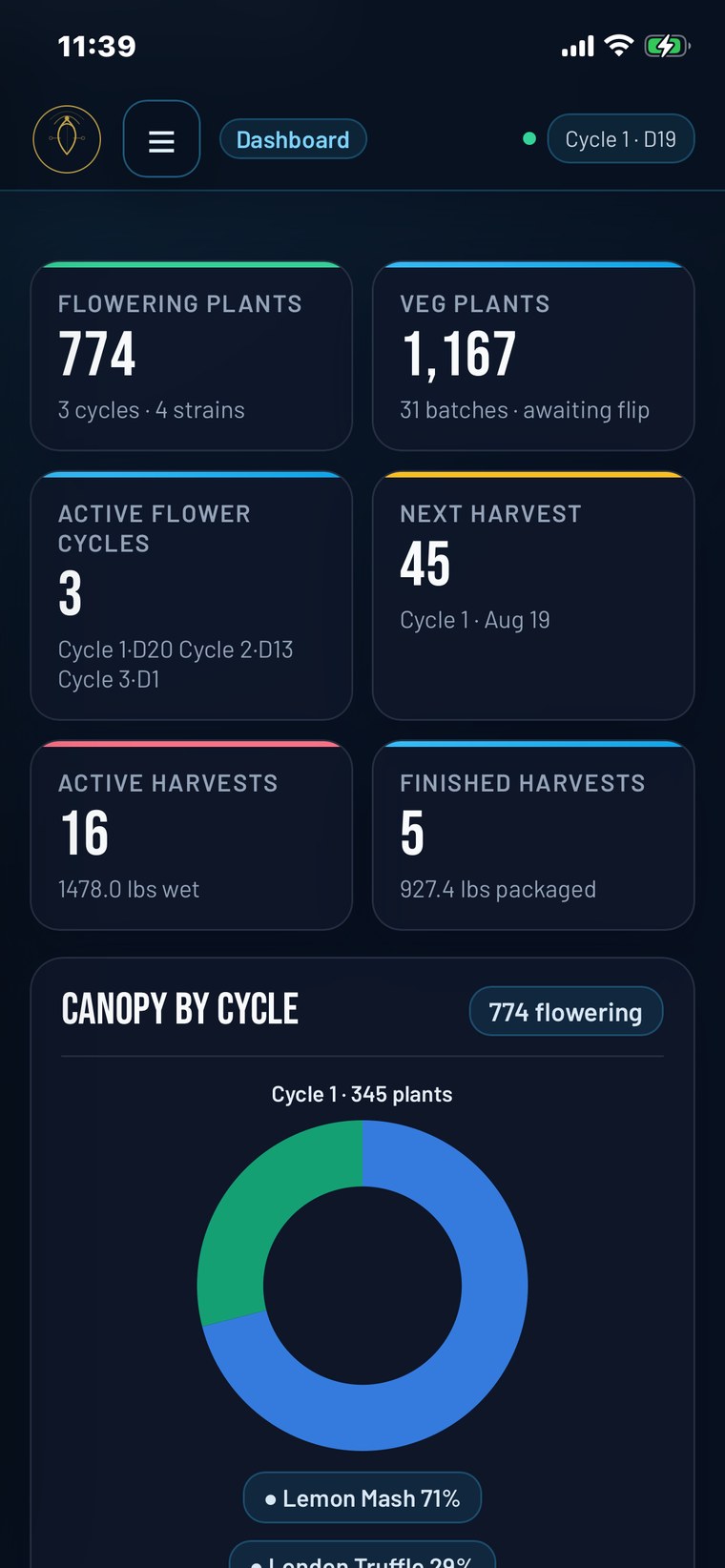
Go is built by an operator who runs a licensed commercial grow, so it's shaped around what actually happens between the rows. Two things make it different from filing at a desk: you scan a tag and act, and it keeps working with no signal — the reality of cultivation in metal buildings and back rooms.
What Go is for
- Recording Metrc compliance actions from where the work happens.
- Working offline in dead zones, then submitting to Metrc automatically when you reconnect.
- Scanning a plant or package tag and taking the right action in a couple of taps.
What Go is not
Go is a focused Metrc compliance tool — that's the whole point. It isn't your full back office. Live environment and water monitoring from your sensors, analytics, the cycle planner, team tasks, the TV wallboard and the CarinaSense™ AI analyst come with the CarinaOS Full plan, which you can upgrade to from inside the app. If Metrc compliance is what you need on the floor, Go stands on its own. See Go & the Full plan.
CarinaOS is software only. It never handles plant material — it records what your team does and files it to Metrc on your behalf.
Before you start
You'll get through setup fastest with these ready:
- An iPhone (current iOS) or an Android phone — plus any computer with a browser if you'd like to do some of the work sitting down.
- An active Metrc license in a supported state. Go is live in Alabama, Alaska, California, Colorado, Illinois, Kentucky, Louisiana, Maryland, Massachusetts, Michigan, Minnesota, Mississippi, Montana, New Jersey, New York, Ohio, Oklahoma, Oregon, South Dakota and Washington, DC. More states are on the way; see the current list, and ask support if yours isn't there yet.
- Your Metrc user API key for the license you'll manage — you generate this inside Metrc. See Connect Metrc.
- A CarinaOS Go account, or just start the 14-day free trial from the app.
- A connection at some point in the day. Go works offline while you're on the floor, but it needs to reach the internet to sync fresh data and to file your queued actions to Metrc.
You must already be enrolled and licensed in Metrc for your state. Go connects to your existing Metrc account — it doesn't create your state license or enroll you in track-and-trace.
Five steps to your first entry
- Install the app. Search the App Store (iPhone) or Google Play (Android) for “CarinaOS Go.” On iPhone you can also open App Store ID 6786339119.
- Start your trial and sign in. Create your Go account and begin the 14-day free trial.
- Connect Metrc. Choose your state, then paste or scan your Metrc user API key and pick your license.
- Let it sync. Go pulls in your current plants, batches, packages, and tags. Confirm they look right.
- Scan and act. Scan a plant or package tag, take an action, and submit. You're live.
Download & install
CarinaOS Go is on the App Store (iPhone) and Google Play (Android).
- Open the App Store (iPhone) or Google Play (Android).
- Search CarinaOS Go. On iPhone you can also open App Store ID
6786339119directly. - Tap Get / Install, then open the app.
Keep automatic updates on so you always have the latest Metrc field support and fixes.
Download on the App Store → Get it on Google Play →
Use Go in a browser, too
Go isn't only an app. Sign in at app.carinaos.com with the same account and you get the Metrc side of CarinaOS on a full-size screen — handy for big flips, harvests and weigh sheets at a desk. There's nothing extra to buy: the subscription you started in the app covers the browser.
Tag scanning uses your phone's camera. In a browser you type or paste tags instead (a handheld USB scanner that types into the box works too). Subscribing and managing your plan also stay on the phone, in the App Store or Google Play.
Free trial & subscription
CarinaOS Go is $99 per month after a 14-day free trial. The trial is full access — connect Metrc and run real entries during it.
How billing works
- Your subscription runs through your Apple ID (iPhone) or Google Play (Android), like any app-store subscription.
- If you don't cancel before the trial ends, it converts to the paid monthly plan automatically.
- Billing, receipts, and renewals are handled by Apple or Google, not charged separately by CarinaOS.
- The same subscription covers Go in a browser at app.carinaos.com — there's no second bill.
Manage or cancel
On iPhone (Apple ID): open Settings → tap your name → Subscriptions → CarinaOS Go to change plan or cancel.
On Android (Google Play): open the Google Play Store app → tap your profile icon → Payments & subscriptions → Subscriptions → CarinaOS Go to change plan or cancel.
Cancel at least a day before your trial or renewal date to avoid the next charge. Cancelling stops future renewals — you keep access until the end of the period you've paid for. Your compliance data stays in Metrc regardless; CarinaOS never owns your record.
Create your account & sign in
Open Go, create your CarinaOS Go account, and start the free trial. Go uses one login per facility.

- Launch CarinaOS Go.
- Choose Create account and enter your work email and a password, or Sign in if you already have a Go login for this facility.
- Start the free trial when prompted.
Each login is tied to a single licensed facility. If you run more than one license, you'll sign out and sign back in with that facility's account to switch — see Connect Metrc.
Go signs you into one facility at a time. To work a different license, sign out and back in with that account. If keeping several facilities open at once is essential to how you operate, contact us about a custom solution.
Connect your Metrc account
This is the one setup step that matters most. CarinaOS holds the certified integrator credential for your state; you supply your own Metrc user API key so every entry posts under your license.
1. Generate your Metrc user API key
You create this inside Metrc, not in CarinaOS — on a computer, signed in for your state:
Generate the key with CarinaOS as the integrator, and treat it like a password.
The Metrc user whose key you generate needs permission for the actions you'll take in Go — plants, harvests, packages, and so on. If an action is rejected, the user's Metrc permissions are usually the cause, not the app.
2. Add the key in Go
Open the Metrc connection screen (Step 2 of the in-app setup) and fill in three things:
 1
2
3
1
2
3
- Choose your state. CarinaOS connects to that state's Metrc system to verify your key.
- Add your key. Paste your Metrc user API key — or tap 📷 Scan API key to scan the QR on Metrc's API Keys page, so you never type a 48-character key.
- Find your facility. Tap 🔍 Find my facility to pull your license from Metrc, pick it, and Save. Go verifies the connection and loads your live plants, batches, packages, and tags.
3. Confirm it worked
If lists come back empty or you see an error, head to Troubleshooting — the usual causes are a mistyped key, the wrong state, or Metrc permissions.
Go connects one facility per login. To manage another license, sign out and sign back in with that facility's account — you can't hold several open at once by default. If that's a hard requirement, ask us about a custom solution. Whichever facility you're signed into is where every entry posts, so confirm it before a session.
How Go maps to your grow
Go mirrors how Metrc and your facility are organized, so what you see matches what's on the floor.

You don't set all of this up in Go. Rooms, licenses, and tags come from Metrc and sync into the app so your entries drop into the right place.
Scan a tag, take the action
The fastest way to work in Go is to scan. Point at a plant or package tag and Go shows only the actions that make sense for what you scanned.

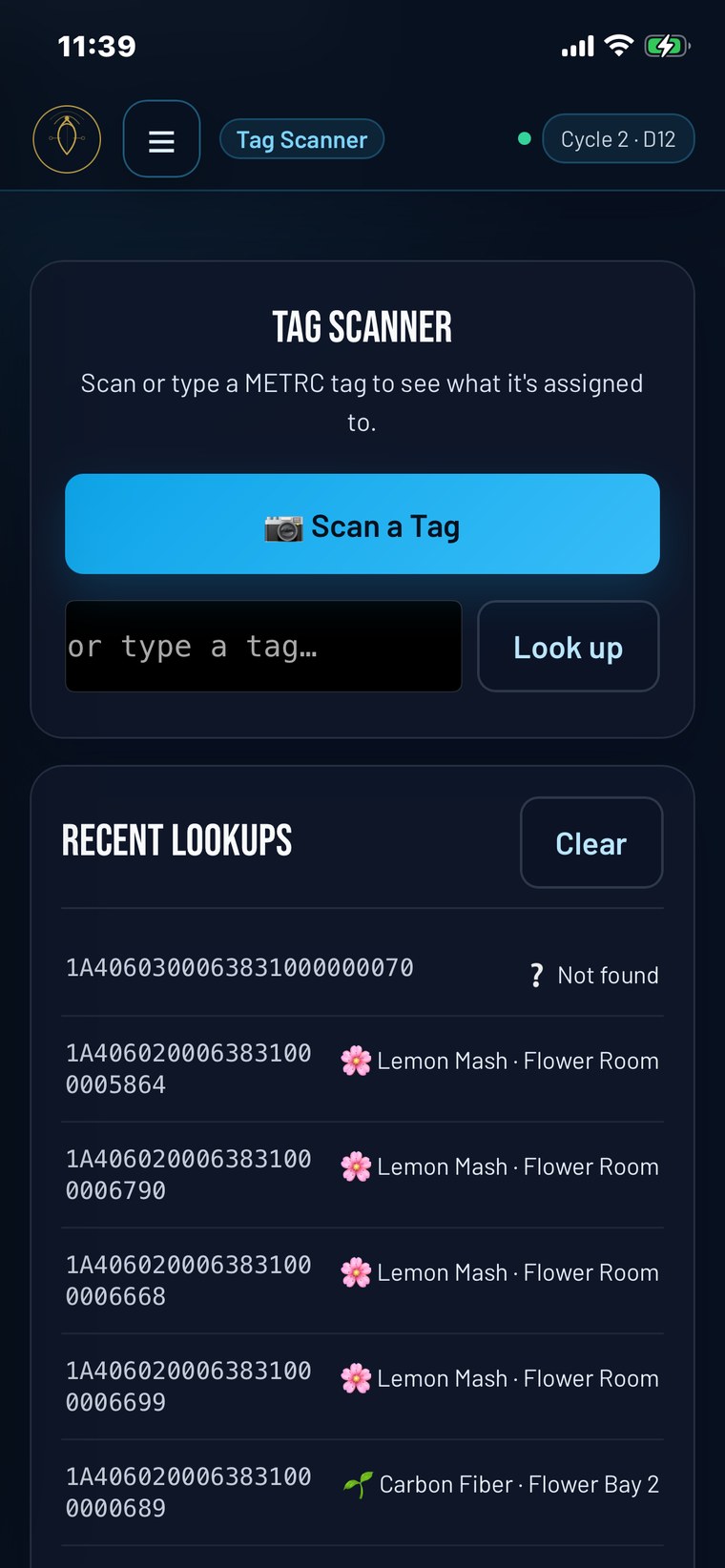
- Scan the tag. Go resolves it and reads what it is.
- Pick from context-aware actions. What you can do depends on the tag:
- Package → Adjust, Finish, Note, Remediate, or record Lab results
- Veg plant / batch → Flip to flower, Re-tag, Adjust count, or set Strain
- Flower plant → Destroy, Manicure, Re-tag, or set Strain
- Confirm and submit. The action opens with the scanned tag already filled in. Go checks the entry for completeness, then files it to Metrc — or saves it to your offline queue if you have no signal.
Before anything is sent, Go validates the full entry — required fields, correct formats — so you don't file (or queue) something Metrc would bounce. If a field is missing, Go tells you before it goes anywhere.
Plants & batches
Go handles the plant events you do most: starting veg plants from clones, flipping to flower, and moving a batch.
Clone → veg
Turn a clone package into veg plantings from the Clone Pipeline. Choose the clone package, set the count and destination, and submit — Go creates the veg plantings in Metrc and tags them into veg where required.
Flip to flower
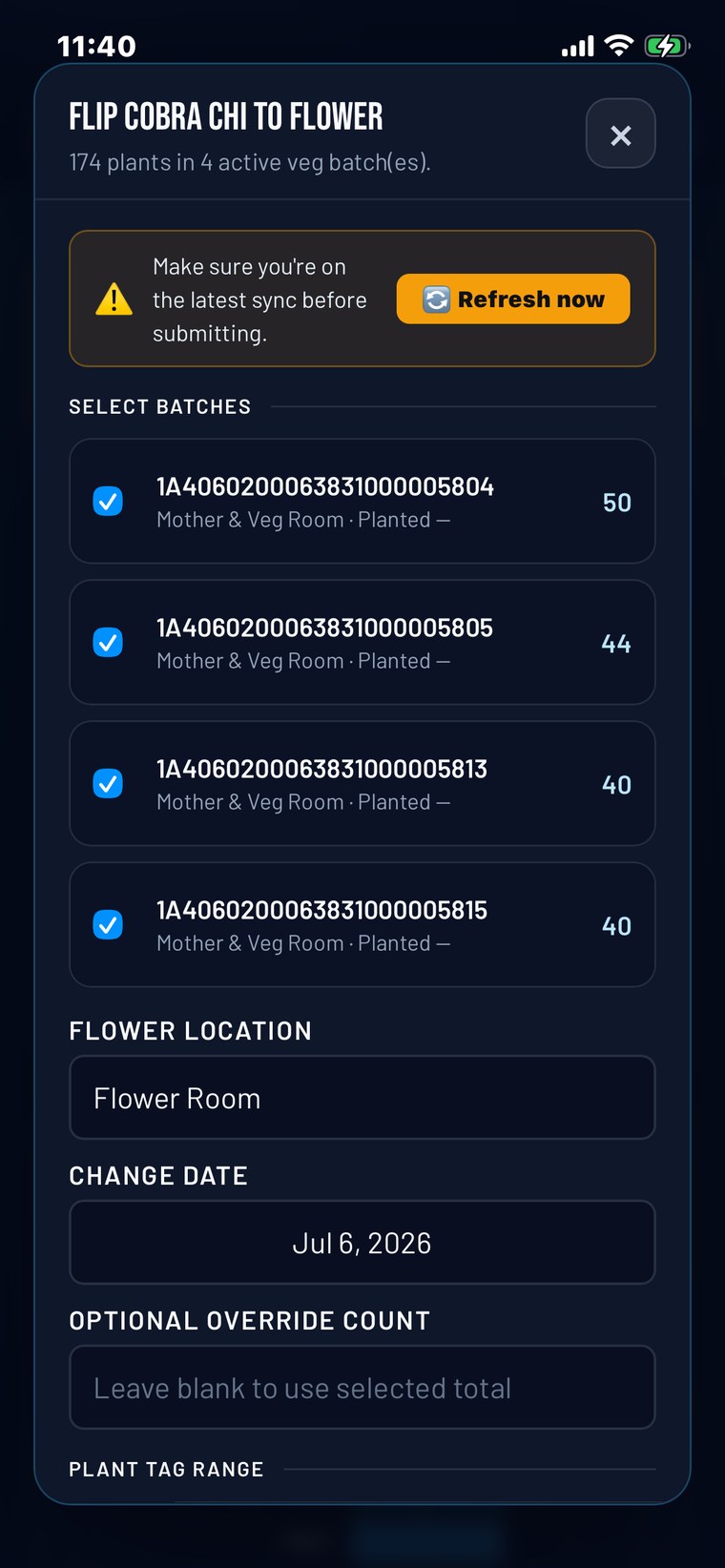
Move a veg batch into flowering. Scan a veg plant (or use the Veg tab), tap Flip, and confirm. Large batches are handled in the background so Metrc's per-request limits don't trip you up. Outside California your veg plants are individually tagged, and the flip works plant by plant — see Tagged veg plants.
To move only part of a batch, tick one batch and enter a Count. With several batches ticked, a Count is refused rather than guessed at — leave it empty to move every ticked batch in full.
Move a batch
Relocate a batch to a new room or location from the Batch tab. Pick the destination and submit.
Today you move a whole batch at once. Moving individual plants out of a batch isn't available in the app yet — for a one-off single-plant move, handle it in Metrc directly. Tell us if per-plant moves matter to your workflow; it's on the roadmap.
Clone packages from a mother plant
Cut clones from a tagged mother with Create Clone Package in the Metrc tab. Outside California, pick the mother plant by tag (plants in Metrc's Mother phase are marked), the item, the count and a package tag; the clones are packaged in the mother's room, ready for Clone → veg. In California, where mothers are tracked as batches, the form takes a mother batch instead. Dry run first, as always.
Whether a license may package clones from plants is set by Metrc for its facility type. If yours can't, the form says so and won't submit — create clone packages in Metrc directly, or ask Metrc about the license.
Log additives (IPM & feeding)
Record additive applications — nutrients or IPM treatments — against plants or an entire location, for your feeding and pest-management records. Choose what was applied, the amount, and the target, then submit. Like any action, additives queue offline and file on reconnect.
If your workflow uses printed clone labels, those are generated alongside your Metrc sync so the physical tag and the record stay matched.
Tagged veg plants
In every Metrc state except California, each veg plant carries its own tag. Go follows that model: plants get their tags as they move into veg, and keep them when they flip to flower.
What the Veg screen shows
- Tagged veg plants, grouped by strain, with the planted date and days in veg. The headline counts only tagged plants.
- Immature batches — clones that haven't been tagged yet — are labelled immature batch · not yet tagged, with their count shown beside the tagged total.
Tag into veg
Tap an immature batch and the form opens as Tag strain into veg. Each plant gets its own tag: choose the veg room (one is suggested), the starting tag, and the count, then dry-run and submit. Moving straight to flowering is still a choice on the same form.
Flip tagged veg plants to flower
Tap a tagged strain on the Veg screen to open the flip. Choose which plants:
- Every plant of this strain
- Only the plants in one veg room
- A range of tags — type the last digits; one number means that one plant, and the full tags matched are shown as you type
Pick the flower room and date, then dry-run and submit. Each plant keeps the tag it already has — no new tags are needed at flower. A big room is flipped in passes with progress shown, and the Veg screen reloads fresh afterwards.
California doesn't tag veg plants: clones stay in batches until the flip, and they get their tags at flower. Go shows California facilities the batch view and the batch flip instead.
Destroy & log waste
Go records two different things, and it keeps them apart so a trim is never filed as a destruction:
- Destroy — plants are removed from Metrc, with their waste weight.
- Log waste — waste from plants that stay: a defoliation pass, trim, clippings.
Destroy plants
- Scan the plant or open the Destroy action from the Flower or Veg tab.
- Enter the waste weight and pick a reason, and note the material where asked.
- Submit. The waste event files to Metrc (or queues if you're offline).
Log waste — plants stay
Tap ✂️ Log waste on the Veg or Flower tab (or Log flower waste / Log veg waste in the Metrc tab's Destroy card).
- Waste came from — a whole room (a defoliation pass) or plants of one strain, optionally narrowed to a range of tags.
- Enter the waste weight and unit, then pick the method and reason from your license's Metrc lists. Date and a note are optional.
- Dry-run, then submit. The plants stay exactly where they are.
The waste log
Below the form, Recent waste in Metrc lists what's been recorded — date, weight, reason and method — and marks the records that aren't packaged yet.
Metrc doesn't let outside software package plant waste, so that step is done in the Metrc web portal. The waste log shows you what's still waiting, so nothing gets missed.
Most rejections are a missing or zero weight, or a reason Metrc doesn't accept. Waste against an empty or already-finished batch is refused by Metrc — that's a state rule, not an app error. Confirm the plants still exist and have quantity, and that weight and reason are filled in.
Harvesting
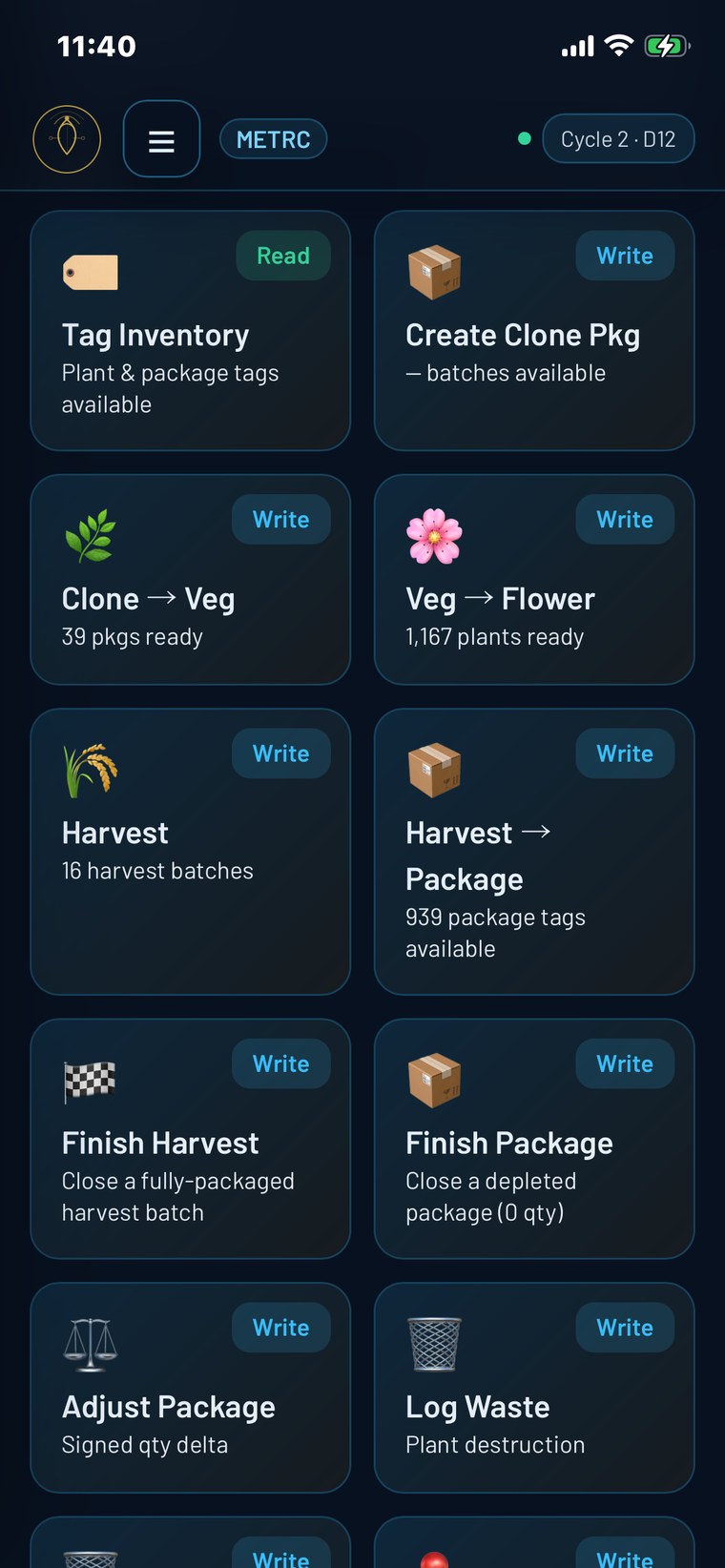
Go carries the harvest actions so you can log and package a harvest from the floor.

- Log harvest — record plants coming down and their weight against a harvest.
- Manicure — trim a living plant, sending the trimmed weight into a drying batch.
- Harvest → package — create a tagged package from harvested material.
- Finish harvest — close the harvest once its remaining weight is accounted for.
Manage a harvest. From the Harvest Actions card you can also move a harvest to another drying room, rename it, re-open a finished harvest, or restore plants back to flowering if a harvest was logged by mistake.
Plant weights
Metrc records a wet weight for every plant. When you harvest, choose how those weights are set:
- Split the total — vary ±8% per plant (the default). Enter the room's total wet weight; each plant gets a weight within 8% of the average, and the total stays exact. The dry run shows the same split that's filed.
- Split the total evenly — every plant gets the same share.
- Weigh each plant — opens a weigh sheet, for facilities that put every plant on the scale.
The one-tap Undo in your recent-actions log won't reopen a finished harvest — use Re-open harvest in the Harvest Actions card for that. Only finish once the numbers reconcile.
Weigh each plant on a weigh sheet
A weigh sheet records the wet weight of every plant in a harvest, one tag at a time, and files them to Metrc when you're done. It's saved on our server as you go, so you can stop, come back, or carry on from another device.
Weighing
- Choose Weigh each plant as the plant weights, then Open weigh sheet.
- Find the plant. Tap 📷 to scan its tag with the phone's camera, or type the last 4+ digits — the full tag and whether it's weighed show as you type.
- Enter the weight and press Enter. It saves and returns to the scan box.
- Plants usually go on the scale in tag order, so pressing Enter on an empty scan box jumps to the next unweighed plant: weight, Enter, Enter, weight…
Already have the weights in a spreadsheet or from a scale export? Paste “tag, weight” lines, or download the CSV template of every plant still to file, fill it in, and upload it back.
Filing
File the weighed plants when you're ready — all at once or as you go. They're sent to Metrc in waves, and each filed plant is locked. When every plant is filed, the sheet stays as the record of what each plant weighed. You can also close a sheet or discard one you don't need.
Keep weighing. A weight that can't be sent is held on the phone, shown as waiting, and sent as soon as signal returns or you reopen the sheet. Filing the sheet to Metrc needs a connection, though — it isn't added to the offline queue, and it waits until every held weight has gone up.
Weigh sheets work at app.carinaos.com too. There, Scan on a phone shows a QR code that opens the same sheet on your phone; weights entered on either screen appear on the other.
Packages & items
Create tagged Metrc packages, adjust or finish them, and finish a whole stack at once.


Create a package
From an immature batch, start a new package: select the item, enter the quantity and unit of measure, assign a package tag, and submit.
Adjust a package
Correct a quantity: enter the new amount — Go shows a live preview of the result — pick a reason, and submit. An adjustment is reversible (it can be negated back), and it's logged in Metrc with the reason attached.
Finish & unfinish
When a package is depleted or done, finish it. Finished a package by mistake? Unfinish reopens it. Both are available by scan or from the Package tab.
Bulk-finish by scan
Closing out a lot of packages? Scan a stack of package tags and finish them all in one pass. Optionally, zero out remaining first — Go adjusts each to 0, then finishes. Everything is checked before it's sent, and offline it queues the adjust-then-finish steps in order.
Items & strains
Packages reference Metrc items, each with a unit of measure, and items are tied to strains. You can add both right in Go — no desktop trip required:
- Add a strain — create a new strain so it's available for plantings and items.
- Add an item — create the item with its category, unit of measure, and strain, so it's ready to package against.
Set these up before packaging so the right item and unit are there when you create the package.
Metrc is strict about units of measure. When you add an item, pick the unit that matches how it's meant to be counted — a mismatch is a common cause of a rejected package.
Syncing & working offline
Go writes directly to Metrc — no second system in between. When you have signal, actions file immediately. When you don't, they wait safely on your device and file themselves the moment you reconnect.
Reads vs. writes
- Reads — your plants, batches, packages, and tags are pulled from Metrc so what you see reflects the state record. Fresh counts need a connection.
- Writes — plantings, flips, moves, waste, harvests, and packages post to Metrc when you submit, or as soon as you're back online if you made them offline.
The offline queue
When you're offline, a write action is saved to an on-device queue instead of failing:
- You act as normal. Scan and take the action — no connection needed.
- Go confirms it's queued, not filed. You'll see
📥 Offline — saved to queue. Auto-submits when back online.Go never tells you something reached Metrc while you're offline. - A badge shows the count in the corner:
📥 3 queued · offline. - On reconnect, the queue drains automatically, in the exact order you entered items, and confirms with
✅ N queued actions submitted.Completed items clear a few seconds later.
The queue, under your control
Tap the badge to open the queue. Each item shows an icon and plain label (e.g. “Flip to flower”), a detail line (batch · strain · tag), and a status:
You can move items up or down, retry a failed one, remove an item, or tap Submit all now to send everything without waiting for auto-drain.
What you can rely on
- Persistent — the queue survives closing and reopening the app.
- In order — items submit in the sequence you created them, which matters for multi-step work (zero-out, then finish).
- Honest status — nothing is shown as filed until Metrc actually accepts it.
- No silent loss — a failed action stays in the queue with its error message, ready to retry. It's never dropped.
- Validated first — each action is checked for completeness and format before it's queued, so fewer things bounce.
New tags need a sync. Actions on tags the app has already synced work offline; discovering a brand-new tag it's never seen requires a connection to resolve. Weigh sheets file online. Weights are held on the phone when there's no signal, but filing a sheet to Metrc waits for a connection. No auto-dedup. If you deliberately queue the same action twice (say, “adjust +5” on one package, twice), both submit — remove duplicates before reconnecting if that wasn't intended.
Tag inventory, room audit & records
Beyond filing actions, Go includes a few tools built for working in the room.


Tag inventory
Check your Metrc tag supply from your phone — how many plant and package tags you have available to assign. It's a read view, so the latest counts arrive on your next sync. Order more tags in Metrc before you run low, since running out stops tagging work cold.
Room audit
Scan every tag in a room and Go reconciles what's physically there against your last synced data. It sorts results into three buckets:
The audit runs fully offline, and you can share or export the result. It's the fastest way to catch a mis-tagged plant or a discrepancy before it becomes a compliance problem.
Activity log with undo
Go keeps a running log of what you've done. Where Metrc allows a clean reversal, you can undo from the log — an adjustment negates back, a finish unfinishes. It's a fast safety net for the occasional wrong tap.
Photo attachments
Attach photos to your records for your own documentation, and export your log to CSV when you need it off the phone.
Go & the Full plan
Go is deliberately narrow: Metrc compliance, from the floor. When you want the rest of the operation in one place, that's the CarinaOS Full plan — the same account, with the rest of the hub switched on.
Upgrading: in the app, tap Upgrade to Full. Your subscription stays with the store you signed up through — App Store or Google Play — and upgrading swaps the plan on that same subscription, so there's nothing to cancel and no second bill. See pricing, the Hub guide for what Full adds, or talk to us.
Troubleshooting
“I connected Metrc but everything is empty”
Almost always one of three things: the API key was mistyped or has a stray space, the wrong state is selected, or the Metrc user lacks permission. Re-paste the key carefully, confirm the state, and check the user's Metrc permissions.
“My connection was working and now it isn't”
A Metrc key can be regenerated or revoked on the Metrc side, which breaks the link. Generate a fresh user API key in Metrc and add it again in Go.
“Scanning a tag does nothing while I'm offline”
Check whether it's a tag the app has synced before. Actions on known tags queue offline; a brand-new tag the app has never seen needs a connection to resolve its details. Get back into signal, sync, and try again.
“My queue isn't draining after I reconnect”
Open the queue and tap Submit all now. Confirm the phone truly has internet by loading any web page — captive Wi-Fi and weak signal are common culprits.
“An item is stuck on Failed”
Open the queue and read the error on that item. Most failures are Metrc validation issues — a missing or zero weight, an invalid reason, or the wrong unit. Fix the underlying entry and tap Retry. Failed items never disappear on their own.
“The badge shows a count but the queue looks empty”
Reopen the app. The queue reloads from device storage on launch and drains any leftovers if you're online.
“An action succeeded but it's still in the list”
Give it a few seconds — completed items are pruned shortly after they succeed.
“An action was rejected by Metrc”
The rejection comes from Metrc and usually names the cause: a unit-of-measure mismatch, an action against an empty or finished batch, a missing tag, or a permission the user doesn't have. Fix the record or permission, then resubmit.
“Metrc refused this action for this licence (401) — nothing was filed”
Your connection is fine — this is Metrc declining that one action for your license. Either the Metrc user behind your key is missing a permission the action needs, or your license's facility type isn't allowed to do it (packaging clones from plants is a common one). Check the user's permissions in Metrc, or do that step in Metrc directly. Nothing else is paused; your other actions keep working.
“My Veg screen shows batches but no plants” (or the reverse)
Outside California, clones sit in immature batches until they're tagged into veg, and only tagged plants count as veg. If you expected plants, check that the batch was actually tagged into veg in Metrc. See Tagged veg plants.
“It won't take my Count”
A Count only applies when one batch is ticked. With several batches ticked, untick all but one, or clear the Count to move every ticked batch in full.
“Create Clone Package says my license isn't allowed”
Metrc sets this per license. Create the clone package in Metrc directly, or ask Metrc whether your facility type can package clones from plants.
“Weights on my weigh sheet say waiting”
They're saved on the phone and haven't reached our server yet — usually no signal. They send themselves when you're back online or when you reopen the sheet. Don't file the sheet until the waiting banner clears.
“I can't package my plant waste in Go”
That's a Metrc limit: outside software can't package plant waste. Log the waste in Go, then package it in the Metrc web portal. The waste log marks what's still waiting.
“I can't sign in”
Confirm you're using this facility's Go login. Reset your password if needed. Remember Go is one login per facility — the account is tied to the license.
“It says my subscription isn't active”
Confirm the subscription is active: on iPhone in Settings → your name → Subscriptions (Apple ID); on Android in the Google Play Store → profile → Payments & subscriptions. If you restored a device or changed accounts, you may need to restore purchases.
Frequently asked questions
If I lose signal mid-action, do I lose my work?
No. The action is saved to your device's queue and submits automatically when you're back online — in the order you entered it.
What can I do offline?
The Metrc write actions: flip to flower, destroy and log waste, adjust a package, finish and unfinish packages, create a package, clone → veg, move a batch, the harvest actions, log additives, and bulk-finish by scan. Room audit and the activity log work offline too. What needs a connection: resolving a brand-new tag you've never synced, pulling fresh live counts, and filing a weigh sheet (weights you enter offline are held on the phone until you're back).
Will I accidentally file the same action twice?
Each queued action submits once. Note that Go doesn't auto-deduplicate intentional repeats — if you queue “adjust +5” twice on the same package, both submit. Remove duplicates from the queue before reconnecting if that wasn't intended.
One of my queued actions failed — what do I do?
Open the queue, read the error on that item, fix the underlying issue (often a wrong weight, reason, or unit), and tap Retry. Failed items never vanish on their own.
Do actions submit in the right order?
Yes — the queue drains in the exact order you created items. That matters for multi-step work, like adjusting a package to zero and then finishing it.
Can I move a single plant instead of a whole batch?
Not in the app yet — Go moves batches today. For a one-off single-plant move, handle it in Metrc directly. Let us know if per-plant moves matter to you.
Which states does Go support?
Go is live in Alabama, Alaska, California, Colorado, Illinois, Kentucky, Louisiana, Maryland, Massachusetts, Michigan, Minnesota, Mississippi, Montana, New Jersey, New York, Ohio, Oklahoma, Oregon, South Dakota and Washington, DC. More are on the way — see the current list, or contact support with your state and license type before subscribing.
Do I need a Metrc account already?
Yes. Go connects to your existing Metrc account for a licensed facility. It doesn't enroll you in track-and-trace or issue your state license.
Is there an Android version?
Yes — CarinaOS Go is live on Google Play, alongside the iPhone App Store version.
Can I use Go on a computer?
Yes. Sign in at app.carinaos.com with the same account. You get the Metrc side of CarinaOS in the browser; tag scanning and managing your subscription stay on the phone.
Do tagged veg plants get new tags when they flip to flower?
No — each plant keeps the tag it already has. See Tagged veg plants.
How do I record a defoliation or trim without destroying plants?
Use ✂️ Log waste on the Veg or Flower tab. It records the waste against a room or specific plants, and the plants stay. See Destroy & log waste.
Can I manage more than one facility?
Go uses one login per facility. To manage a second license, sign out and sign back in with that facility's account. Need several open at once? Contact us about a custom solution.
Is my data safe? Who owns it?
Your compliance record lives in Metrc and always belongs to you — CarinaOS files to Metrc on your behalf, it doesn't own your data. Each operation's data is isolated from every other, and communication with Metrc is encrypted. CarinaOS is software only and never touches plant material.
What does it cost, and is there a trial?
$99/month per facility after a 14-day free trial, billed through your Apple ID (iPhone) or Google Play (Android). The same subscription covers Go in a browser. The Full plan is $250/month; see Go & the Full plan.
How is Go different from the Full plan?
Go does Metrc compliance from the floor — on your phone, offline when it has to be, and in a browser. Full adds the wider operation: sensor monitoring, analytics, planning, tasks, the wallboard and CarinaSense. You can upgrade from inside the app; Go never requires it.
Glossary
Get help
Still stuck? Reach a human. The more specific you are — the exact action, the facility, and any error text Metrc returned — the faster we can sort it out.
Email support: hello@carinaos.com
Call: (213) 460-8969 · 9 AM–5 PM PST
Chat: tap Ask support on this page or at carinaos.com/support — or in the side menu when you use CarinaOS in a browser. Type “talk to a human” to reach a person. (The chat isn't in the phone app.)
Online: carinaos.com
Get the app: App Store (iPhone) · Google Play (Android)
When you write in, tell us your state, your license, what you tapped, and what happened. Screenshots of any error help a lot.
CarinaOS is built and run by someone who works a licensed grow every day. When you flag something, it reaches the person who actually knows the floor.